See your Mac in Display
Display brings a live view of a selected Mac display to your phone or tablet. Keep a trackpad or keyboard beneath the picture, or choose View for more room. Input still goes to the focused app on the Mac, just as it does in the other tabs.
This is a view of an existing display, not an extra monitor or an extended desktop. Screen audio continues to play on the Mac.
Allow screen viewing
Screen mirroring requires CmdPalm 1.0.0 or later and is off by default. Pairing a phone for control does not automatically allow it to see the screen.
- On the Mac, open CmdPalm Settings → General and enable Allow screen mirroring.
- Grant CmdPalm Screen Recording permission in macOS Privacy & Security. Follow any macOS prompt to reopen the app.
- Open CmdPalm Settings → Devices and allow screen access for the phone you want to use.
- On that phone, open Display, choose a display and tap View.
A phone can also ask for screen access from Display setup. Approve the named phone on the Mac. Requests expire after one minute and never grant access automatically.
Choose the controls
- View: devote the available space to the picture.
- Trackpad: point, click, drag and scroll while seeing the result above the controls.
- Keyboard: keep the Mac keyboard, custom keys or typing panel beside the live view.
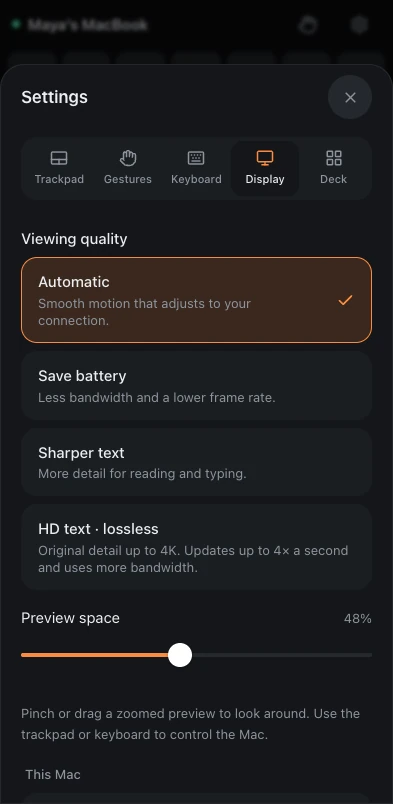
Use Refresh displays beside the display name after changing connected monitors. In Display options, adjust Preview space to give the picture or controls more room. On a wide screen the preview and controls can sit side by side. Fullscreen hides the input controls and fills the app viewport. Exit fullscreen to return to them. Pointer here moves the Mac pointer to the selected display.
Zoom and pan
Pinch to zoom around the part of the picture you want to inspect. Drag a zoomed picture to pan. You can also use Zoom in, Zoom out and Fit below the preview. On smaller previews, these controls move into Display options.
Preview zoom changes what you see on the phone; it does not change the Mac’s display resolution.
Choose viewing quality
Open Display options → Viewing quality.
| Setting | Use it for |
|---|---|
| Automatic | Smooth motion that adjusts to the connection. |
| Save battery | Lower bandwidth and a lower frame rate. |
| Sharper text | Reading and typing with more detail. |
| HD text · lossless | Reading small text or code. Preserves fine detail up to 4K and updates changed areas up to four times per second. Uses more bandwidth. |
The live video modes use hardware H.264 encoding and refine fine detail after movement stops. HD text sends lossless pictures over an encrypted WebRTC channel. It preserves the source resolution when the longest edge is at most 3,840 pixels and the picture fits within a 3,840 × 2,160 pixel budget. Larger displays, including 5K displays, are scaled to fit. Display works over HTTP and HTTPS, but HTTPS is recommended to protect the browser page, controls and pairing as well.
Stay in control
One allowed device can view one selected display at a time. CmdPalm does not save a video recording or send your screen through a hosted service.
Viewing keeps the Mac’s display awake while active, so reading without touching anything does not let the display sleep mid-view. Viewing ends when you leave Display, background the phone, lose the connection, or stop viewing, and when the Mac pauses control, locks, sleeps, removes the display or revokes access. You can revoke screen access separately from control access in Settings → Devices.
If the preview does not appear
If the Display tab is missing, update CmdPalm on the Mac and reopen the controls on your phone. If the tab is present, confirm that Allow screen mirroring is enabled, macOS Screen Recording permission is granted, and this particular device has screen access. Keep the Mac awake and CmdPalm running. Stop and start viewing if the display arrangement changed.
Screen media needs a working direct UDP path between the phone and Mac. Guest networks, firewalls and some VPN arrangements can block it even if the control page loads. A web reverse proxy carries the page and controls, not the separate screen stream. See using CmdPalm outside your home network.