Start with a preset
Open Keyboard → Custom. The starting keyboards are Presentation, Game and Editing. Tap a name to select it.
Custom keyboards send keys to the app currently in front on the Mac. Keys stay pressed while you touch them, which is useful for arrows, WASD, modifiers and mouse buttons.
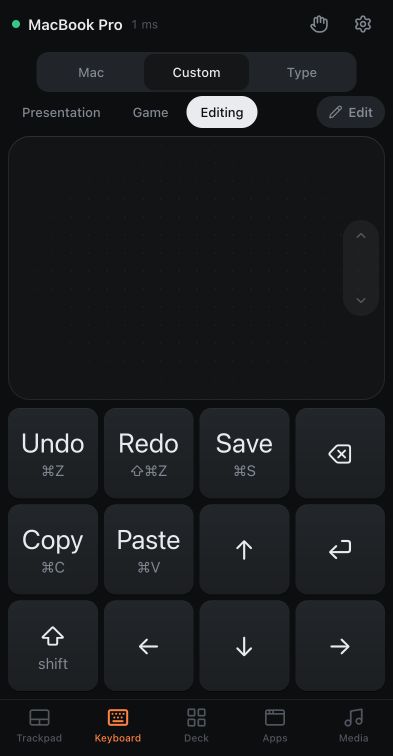
Create a keyboard
- Tap Edit, then the + button labelled New keyboard.
- Choose a preset under Start from, or choose Blank.
- The new keyboard opens in edit mode. For Blank, its settings open first so you can name it and set the grid; close them with Done. Then tap an empty square to add a key.
While editing, tap a key to change it or drag it to a free position. Tap Done when you are ready to use the keys.
Choose what a key sends
The New key or Edit key panel has four choices under Sends:
| Type | Behavior |
|---|---|
| Key | A key or shortcut, held until you lift your finger. |
| Modifier | A modifier held while you touch other keys. |
| Media | A playback, volume, mute, display brightness or keyboard backlight control. |
| Mouse | A left, right or middle mouse button; hold it while moving on the trackpad to drag. |
With Modifier selected, the bottom row offers right-side ⌃, ⌥, ⇧ and ⌘ keys, labelled right. Use these when a Mac app or hyper-key setup treats the two sides differently. These are held modifier keys; release your finger to release the modifier.
A Key set to Caps Lock lights up green while Caps Lock is on, including when you change it on the Mac. In the shortcut field, hardware Esc selects Escape and Tab moves to the next control; choose the on-screen Tab option to assign that key.
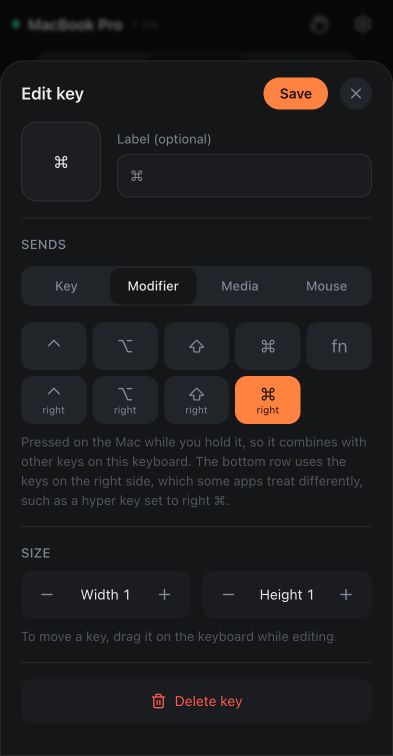
Add a short Label (optional). Use Size to change the key’s width and height, then tap Add or Save. Keys cannot overlap. If a key will not fit, move another key or reduce its size.
Change the grid and trackpad
In edit mode, tap the already-selected keyboard name to open its settings.
- Name: rename this keyboard.
- Columns / Rows: resize the grid. Columns range from 2 to 12; rows range from 1 to 8.
- Trackpad: include a pointing surface with the keys. Its position adapts to the available space and phone orientation.
- Duplicate: keep the name you just entered and make a copy you can change separately.
- Delete: tap Delete, then Tap again to delete. You can’t delete your last remaining keyboard.
To reorder keyboards, tap Edit and drag a keyboard tab. You can also open the selected keyboard’s settings and use Move left or Move right, or use Alt + Left / Right on a connected keyboard while a tab is focused. The selected keyboard stays open.
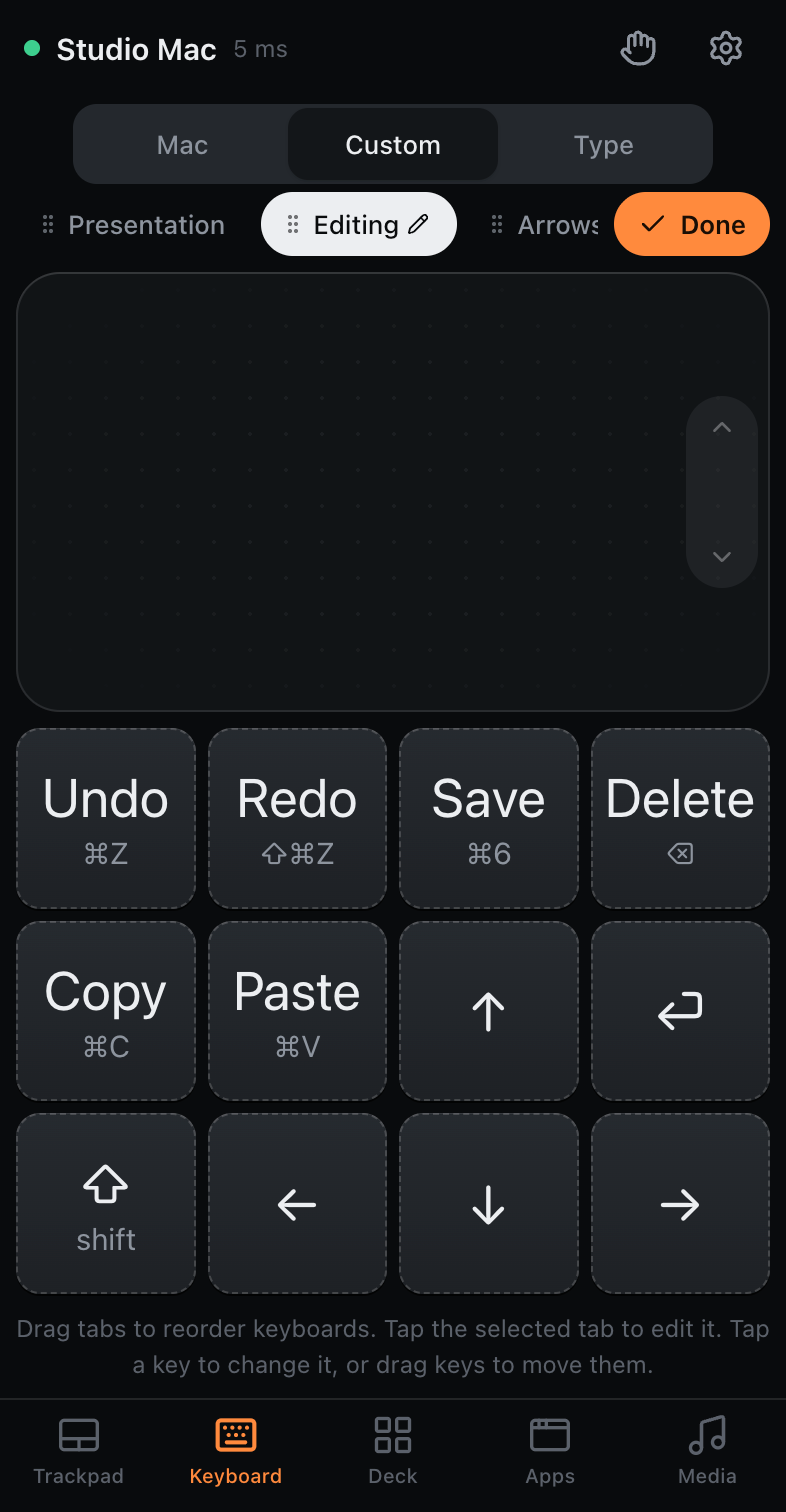
Move or remove keys at the edge before shrinking the grid. Close the settings with Done, then leave edit mode using the keyboard’s Done button.
Use it with the Mac app
Bring the intended Mac app to the front, then try the keys. You can hold several at once, including a modifier and another key. A game still needs to support the keyboard or mouse input you configured.
For presentations, the Presentation preset guide explains the included slide controls. For buttons that open apps, insert text or run a sequence, use the Deck.
Keep a layout on each device
Custom keyboards are stored with that device’s settings, with a backup on the Mac for remembered devices. A phone and tablet can keep different layouts.
To reuse a layout on another device, use Settings → Copy settings from another device. Read how to choose what to copy before confirming.