
 CmdPalm 03 / Presentation
Pair before you present
You need an Apple silicon Mac running macOS 15 or later and a phone that can reach it on the same local network. iPhone and iPad require iOS 17 or later; Android phones can connect through their browser. CmdPalm is free and open source, with no phone app or account required.
Install CmdPalm on the Mac, allow Accessibility, then scan the QR code in its menu bar with your phone. If this is your first setup, follow the installation and pairing guide.
Choose the Presentation preset
- On the phone, open Keyboard and switch to Custom.
- Tap Edit, then the + button for a new keyboard.
- Choose Presentation from the presets, then tap Done to leave edit mode.
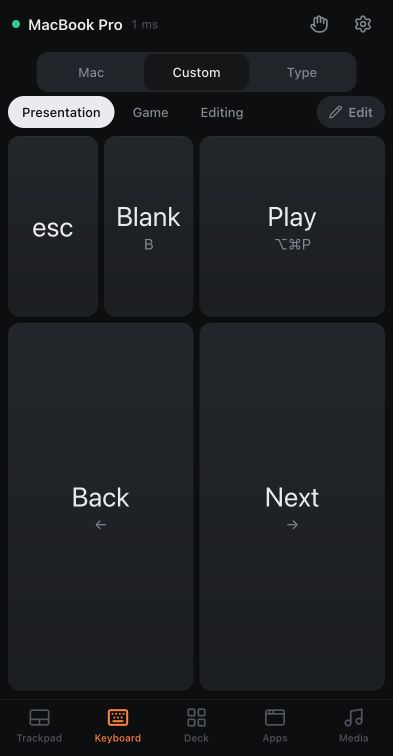
The preset includes large Back and Next controls, along with Escape, Blank and Play. You can change the layout or individual keys later.
Put the presentation in front
Open your slides on the Mac and keep the presentation app focused. CmdPalm sends keyboard input to the active app; it does not choose the target presentation for you.
The preset’s Play button sends Keynote’s ⌘ + ⌥ + P shortcut. Back and Next send the left and right arrow keys. Blank sends B, and Escape sends Esc. How those keys behave depends on the presentation app and its current mode.
For another slide app, start the slideshow on the Mac and test its shortcuts. You can edit the custom keyboard to match the keys that app expects.
Rehearse in the room
- Test slide navigation with your actual presentation, Mac, phone and venue network.
- Check that the Mac and phone remain connected where you will stand. Guest networks may block device-to-device connections.
- Charge the phone and keep the Mac awake for the presentation.
- Keep the Mac’s own keyboard or another familiar control available if the connection drops.
This is a keyboard remote. CmdPalm does not stream slide previews, the Mac display or speaker notes to the phone. The phone’s buttons control what is already open on the Mac.
Make the controls your own
In custom keyboard edit mode, tap a key to change it, tap an empty square to add one, or drag keys to move them. You can also include a trackpad area if your layout needs pointer control.
If you prefer buttons that launch apps or trigger several actions, build a shortcut deck instead. For current setup details, see the CmdPalm README.