
 CmdPalm 01 / Trackpad
What you need
A Mac with Apple silicon and macOS 15 or later, an iPhone or iPad running iOS 17 or later, and a network they can both reach. An Android phone with a supported browser works too. CmdPalm is free and open source under GNU AGPLv3.
1. Install CmdPalm on your Mac
If you use Homebrew, open Terminal on your Mac and run:
brew install --cask rahatsagor/tap/cmdpalmOr download the DMG and drag CmdPalm into Applications. CmdPalm is not currently notarized by Apple; the installation instructions explain the first-open prompt. Open the app and allow Accessibility when macOS asks, so CmdPalm can move the pointer and send keystrokes.
Open the installed copy from Applications before enabling Settings → General → Open at login. CmdPalm asks you to move it first if it is still running from the disk image or a temporary location.
2. Pair the phone from its browser
Open CmdPalm’s menu-bar icon and scan the QR code with your phone’s camera. Open the link in its browser. You can also type the address shown in the menu and enter the six-digit PIN while the menu is open. Keep both devices on the same local network.
The Mac remembers the paired phone. There is no account to create and no phone app to install.
Use an iPhone or iPad as the Mac’s mouse
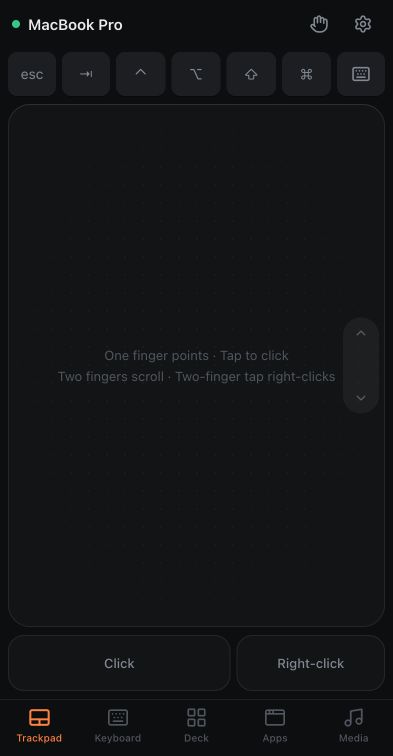
Open the paired page in Safari. On an iPhone, the Trackpad screen gives you a pointing surface with modifiers and click buttons. Turn the phone sideways for a wider surface. An iPad uses the same controls with more room for your fingers.
Choose Share → Add to Home Screen in Safari to keep the controls one tap away. The Mac must stay awake with CmdPalm running.
Use an Android phone as a Mac mouse
Open the pairing link in Chrome, Firefox or Samsung Internet. You get the same Trackpad, Keyboard, Deck, Apps and Media tabs. If the Mac’s .local name does not open, choose QR link uses → IP Address beneath the Mac’s QR code and scan again.
Use the browser menu to add a home-screen shortcut. Chrome’s full web-app installation needs the encrypted HTTPS connection. Ordinary pointer and keyboard control can work before you set that up.
3. Move, click, scroll and type
- Move one finger across the trackpad to move the pointer.
- Tap to click, or tap with two fingers to right-click.
- Touch and hold, then move to drag.
- Move two fingers to scroll. The edge scroll strip is useful for long pages.
- Pinch with two fingers to zoom smoothly in supported Mac apps, or turn two fingers to rotate photos, maps and PDFs.
- Double-tap with two fingers for smart zoom after enabling it in Settings.
- Pinch your thumb and three fingers together to show your apps; spread them to show the desktop.
- Swipe with three or four fingers for actions such as Mission Control, spaces or tab navigation.
- Open Keyboard when you need Mac keys or want to type from your phone.
These inputs go to the Mac, so keep the app or text field you want to control in focus. CmdPalm controls input; it does not mirror your Mac’s screen onto the phone.
Return or Space activates a focused click button or modifier key; VoiceOver and TalkBack can activate them too. Disconnecting or tapping Release all keys and buttons also stops that phone’s scrolling momentum.
Make the controls comfortable
The phone’s Settings gear opens pointer speed, click buttons, natural scrolling, momentum, pinch-to-zoom and scroll-strip preferences. Show advanced settings reveals dragging options and custom three- and four-finger actions. Follow the trackpad and gestures guide to tune them.
For function keys, sticky modifiers and different text input methods, see the full Mac keyboard guide. If a key or mouse button stays held, tap the hand button labelled Release all keys and buttons.
Keep it one tap away
Your saved home-screen controls still need a working local-network connection to the Mac. A Mac connected by Ethernet can work with a phone on that network’s Wi-Fi. CmdPalm’s connection uses the network rather than Bluetooth pairing.
The device setup guide covers encrypted connections, screen wake settings, appearance, remembering a phone, and copying its settings to another device.
If the phone cannot connect
Check the network first. Guest Wi-Fi and some office or hotel networks isolate devices even when they show the same Wi-Fi name. Check that your Mac’s firewall allows CmdPalm. If an Android phone cannot open the QR link, change QR link uses to IP Address beneath the QR code.
If the Mac is asleep, off or unreachable, CmdPalm shows connection checks and Try again, then reconnects automatically when it can reach the Mac. The encrypted home-screen app caches its interface and offline help after a successful load; controlling the Mac still needs a connection.
For setup details and current requirements, see the CmdPalm README. Once the phone is paired, try building a small shortcut deck for the actions you use most.