
 CmdPalm 07 / Mac keyboard
Choose Mac keys or phone typing
You can use an iPhone, iPad or Android phone as a wireless Mac keyboard with CmdPalm. The Mac app is free and the phone controls open in a browser on your local network. Input goes to the app or text field focused on the Mac.
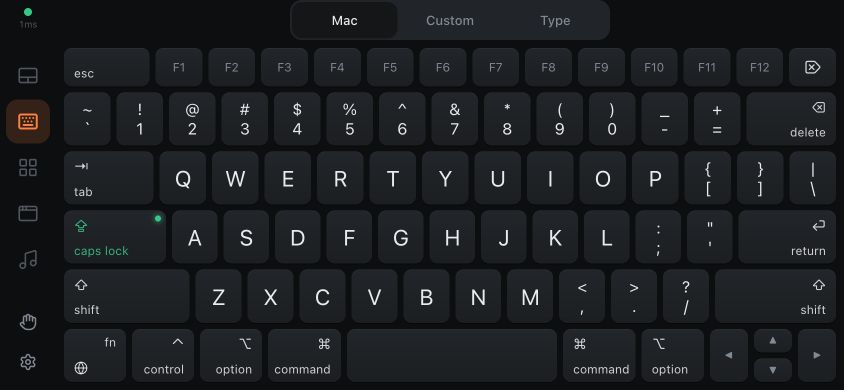
Start with a paired phone and put the app you want to control in front on the Mac. In CmdPalm, open Keyboard. Its three choices are Mac, Custom and Type.
- Mac shows the full on-screen Mac keyboard, including modifiers, arrows and the function row.
- Custom opens your own smaller layouts. The custom keyboard guide explains those.
- Type gives you a text field for your phone’s keyboard, along with useful Mac keys and a trackpad area.
In the phone’s Settings → Keyboard & typing, the Automatic keyboard setting adapts to the screen: phone typing on a narrow portrait screen, and the Mac keyboard where there is more room. Choose a mode explicitly if you prefer.
Turn the phone for more room
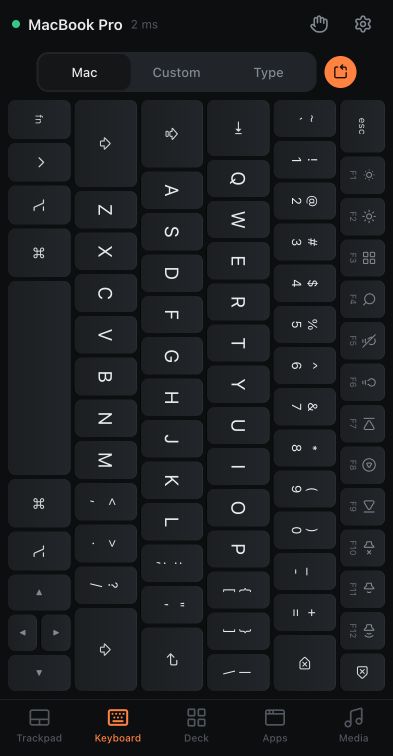
The Mac keyboard works in portrait, but landscape gives the keys more space. On a short landscape phone, the main navigation moves into a side rail. Key labels follow the Mac’s active input source, including its ANSI or ISO layout.
Use Settings → Keyboard & typing → Top row keys to choose Media & brightness or F1 – F12. The Fn modifier switches the row’s role while it is active. Media and brightness controls still depend on your Mac and output hardware.
Use larger keys with rotation locked
Enable Settings → Keyboard & typing → Sideways keyboard, or tap the rotation button next to Mac on the Keyboard tab. When the browser is upright, the keyboard fills the screen on its side without a trackpad. Physically turn the phone to type with landscape-sized keys, even with rotation locked.
Under Turn the phone, choose To the left or To the right. Turn Sideways keyboard off to return to the usual layout.
Use modifiers with one finger or several
For a shortcut such as ⌘ + S, tap Command, then S. The modifier applies to the next key. You can also hold Command while touching S, just as on a physical keyboard.
- Tap a modifier to latch it for the next key.
- Double-tap it to lock it on for repeated shortcuts; tap it again to turn it off.
- Hold it to use it while your finger stays down.
The right ⌘, ⌥ and ⇧ keys send their right-side counterparts to the Mac, and each side lights up independently. Tap, double-tap or hold the side your Mac shortcut expects, including a hyper key assigned to right Command. A custom keyboard can also include right Control.
If a key or modifier seems stuck, tap the hand button labelled Release all keys and buttons. In landscape it is in the side rail. Key repeat in Keyboard & typing makes a held key repeat using the Mac’s repeat speed.
Check the Caps Lock light
In CmdPalm 0.6.0, the Caps Lock key turns green and shows a light while Caps Lock is on. It follows the Mac, whether you switch it on from the phone or the Mac’s own keyboard. Tap it again to turn Caps Lock off. A custom key that sends Caps Lock shows the same light.
Write with your phone’s keyboard
Choose Keyboard → Type, or tap the keyboard button on the Trackpad screen. Tap the text field to bring up your phone’s own keyboard. With Live on, typing and corrections are sent to the Mac as you enter them.
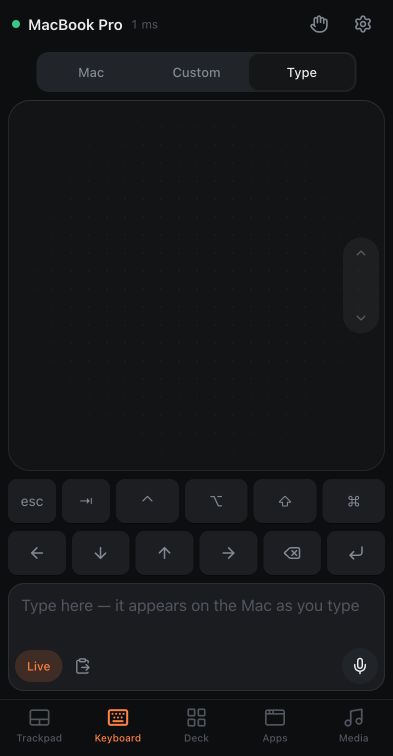
Turn Live off to compose first, then tap the send button to type the finished text on the Mac. Switching Live off keeps text that has not reached the Mac; turning it on sends the draft if it fits the 64 KiB UTF-8 limit. An oversized draft stays in the field so you can shorten it or send smaller parts. The eraser clears the phone field while keeping text already sent to the Mac.
On an HTTPS connection, supported browsers also show a clipboard button labelled Paste the phone clipboard on the Mac. It sends text copied on your phone directly to the focused Mac field. The browser may ask for clipboard permission.
With Live on, the typing panel starts a fresh local segment after its arrow, Delete, Return or phone-clipboard buttons. New typing and corrections apply to that new segment. Keep the intended text field focused on the Mac.
Use a hardware keyboard or screen reader
When a click button, modifier key or Mac key above the phone’s typing field has focus, Return or Space activates it. VoiceOver and TalkBack can activate them too. Activating a phone control does not also send Return or Space to the Mac.
In a shortcut editor’s key field, hardware Esc chooses Escape instead of closing the editor. Tab moves to the next control; use the on-screen Tab option to assign the Tab key itself.
Choose how text reaches the Mac
In the phone’s Settings, enable Show advanced settings. Under Keyboard & typing → Send text as, choose:
- Characters for ordinary text fields.
- Key presses for apps such as games or remote desktops that expect individual keys.
- Paste for long text, using the Mac’s paste operation.
These methods apply when Live is off and you tap the send button. Live typing always sends characters, while the Mac keyboard sends individual key events. Turn Live off before using Key presses or Paste.
Text sent as Key presses keeps the case you wrote even with Caps Lock on. The Mac keyboard’s individual keys still behave like physical keys and follow Caps Lock.
The target app must accept the chosen input method and keep focus. Secure fields and custom controls can behave differently. For speaking instead of typing, follow the voice typing guide.