
 CmdPalm 05 / Custom keyboard
Choose one job for the keyboard
Start with a phone paired to CmdPalm on an Apple silicon Mac running macOS 15 or later. iPhone and iPad require iOS 17 or later; Android phones can use a supported browser. The setup guide covers installation and local-network pairing.
Custom keyboards send input to the app that is in front on your Mac. Decide which app and a handful of keys you want to control before building the layout.
1. Start with a preset
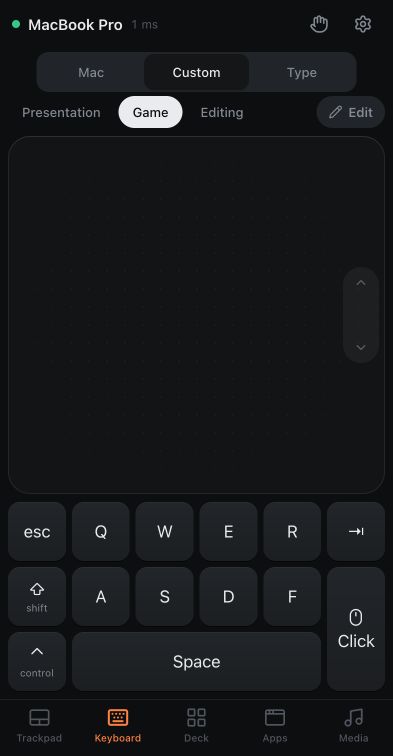
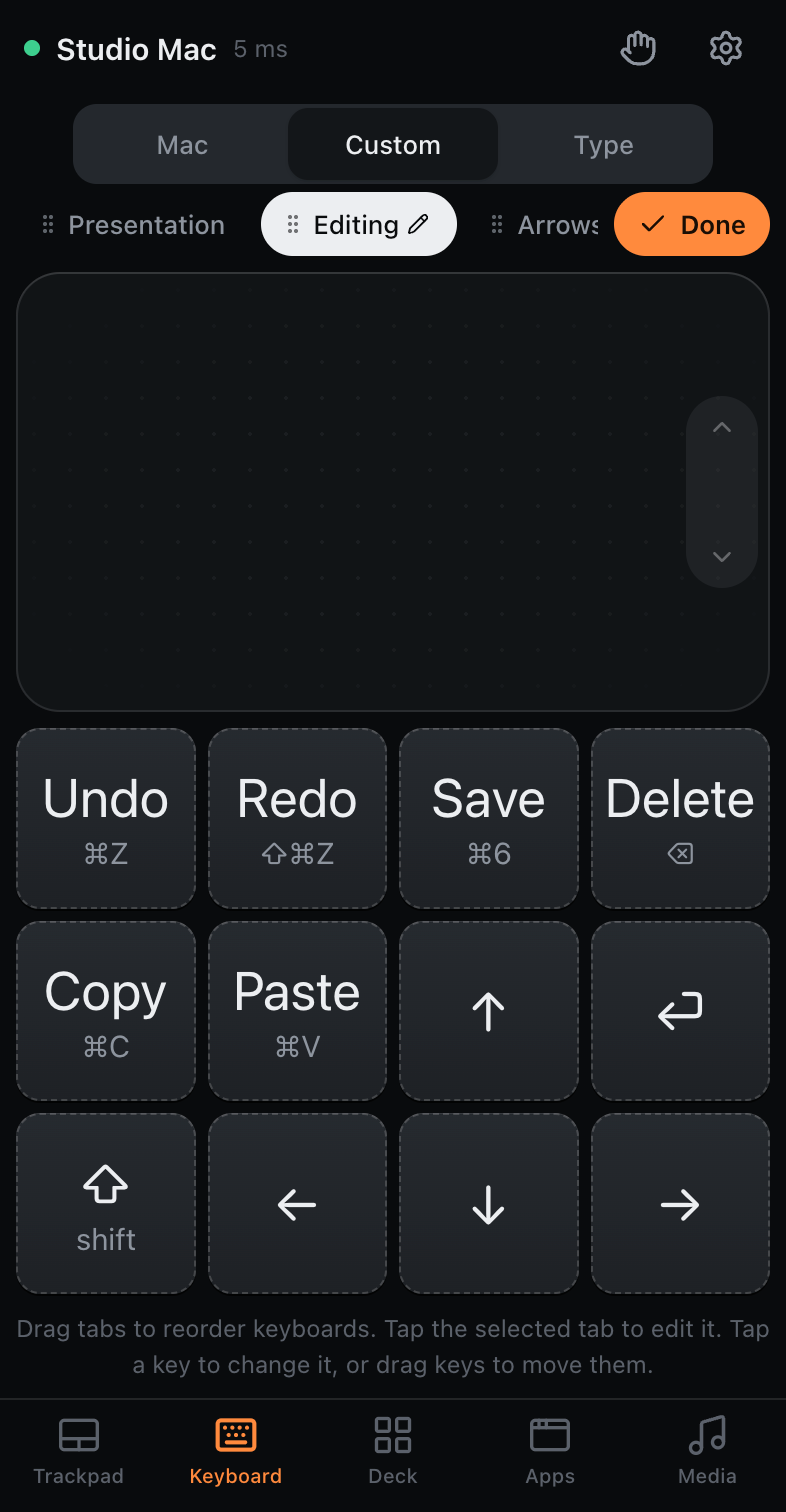
Open Keyboard → Custom on the phone. CmdPalm starts with three keyboards: Presentation, Game and Editing. Tap a name to try that layout.
The Editing keyboard shown above is a useful first choice. It combines a trackpad with Undo, Redo, Save, Copy, Paste and navigation keys. The Game keyboard combines a trackpad with WASD, modifiers and a mouse button.
To create another keyboard, tap Edit, then the + button labelled New keyboard. Choose a preset under Start from, or choose Blank for an empty grid. A new keyboard opens in edit mode.
2. Add and arrange the keys
While editing, tap a key to change it, tap an empty square to add one, or drag a key to a free position. The New key or Edit key panel lets you choose what it sends:
- Key: a key or keyboard shortcut, such as an arrow or ⌘ + S.
- Modifier: a modifier you can hold while touching another key.
- Media: a playback, volume or other available media-key action.
- Mouse: a left, right or middle mouse button you can hold while moving on the trackpad.
Under Modifier, the bottom row offers right-side ⌃, ⌥, ⇧ and ⌘ keys, marked right. Choose one when your Mac app distinguishes left from right, such as a hyper key set to right Command. Hold that key while touching the other keys, then lift your finger to release it.
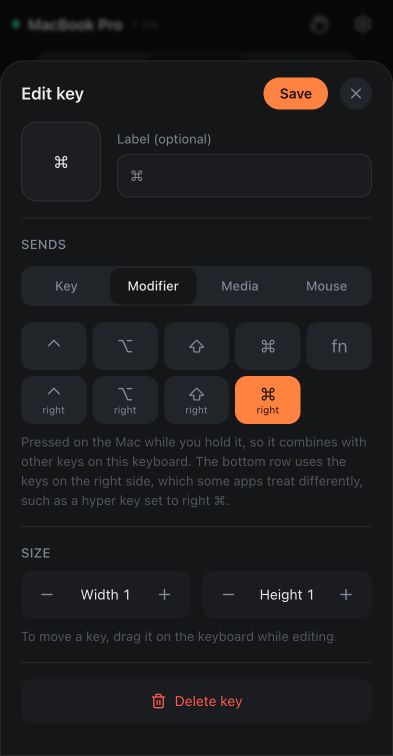
Give the key an optional short Label. Under Size, adjust its Width and Height, then tap Add or Save. Keys cannot overlap: move a neighbouring key or make the new one smaller if CmdPalm says another key is in the way.
A Key set to Caps Lock shows a green light while Caps Lock is on, including changes made on the Mac. In the shortcut field, hardware Esc chooses Escape and Tab moves on; use the on-screen Tab option to assign that key.
3. Set the grid and trackpad
In edit mode, tap the name of the already-selected keyboard to open its Keyboard settings. You can rename it, change Columns and Rows, enable Trackpad, or make a Duplicate.
The trackpad lets you point while holding keys. Its position adapts to the available space; in a wide landscape layout it can sit beside the keys. Before making a grid smaller, move any keys that would fall outside its new edges. Tap Done in the settings sheet, then leave edit mode with the keyboard’s Done button.
If you rename a keyboard and choose Duplicate before closing its settings, the new name is kept for the original and used for its copy.
To put your keyboards in order, tap Edit and drag their tabs. You can also open a selected keyboard’s settings and use Move left or Move right, or focus a tab on a connected keyboard and press Alt + Left / Right. The selected keyboard stays open.
4. Test it with the intended Mac app
Bring that app to the front on the Mac. Touch a key to press it and lift your finger to release it. You can hold several keys together, including a modifier and another key. Try the layout in the phone orientation you plan to use.
Key behaviour depends on the Mac app. A keyboard layout does not add game-controller support to a game that expects a controller. Start with a few controls and check them before making a larger panel.
Keep a layout for each device
Custom keyboards are saved for the phone or tablet you built them on, with a backup in that device’s settings on the Mac. That lets a phone keep a compact panel while a tablet uses a larger one.
To start another device with your familiar keys, use Settings → Copy settings from another device, then adjust the copied board for its screen. The settings and pairing guide explains how to select individual keyboards and settings.
For buttons that launch apps, insert text or run several actions, try a shortcut deck. For slides, the Presentation preset guide explains the keys already included.