
 CmdPalm 09 / Your devices
Pair and add the controls to your home screen
Follow the installation and pairing guide first. CmdPalm needs an Apple silicon Mac with macOS 15 or later. iPhone and iPad need iOS 17 or later; Android phones use a supported browser. Keep the devices on a local network where they can reach the Mac.
On iPhone or iPad, open the paired controls in Safari and choose Share → Add to Home Screen. On Android, the browser can add a shortcut; installing the full web app in Chrome needs CmdPalm’s encrypted connection. On browsers that support it, the phone’s Settings also offers Full screen.
Choose appearance and device preferences
Open the phone’s Settings and scroll to its device section. Set Name to something recognisable; the Mac sees the new name on your next connection. Choose Automatic, Dark or Light under Appearance.
Haptic feedback appears on supported devices. Keep screen on requests a screen wake lock while connected or waiting for pairing approval, and requests it again if the system releases it while CmdPalm stays visible. Availability depends on the browser and secure connection. Manage the Mac’s own sleep settings separately.
Haptics use vibration in supported Android browsers, or system switch feedback on supported iPhone and iPad devices running iOS/iPadOS 18 or later. In 0.5.0, iPhone haptics work again for taps on the trackpad, keys, click buttons and Deck buttons, including on iOS 26.5. Swipes and long presses still cannot give feedback on iPhone. Key press haptics turns keyboard and modifier-key feedback off separately while Haptic feedback is on. Hardware and system settings affect whether you feel it; two-pulse error feedback depends on vibration-pattern support.
In Settings → Deck → Button size, choose how large the shared deck looks on this phone or tablet. Wider screens fit more columns automatically. The Deck guide explains how page columns and device button size work together.
Leave Remember this device enabled for your own phone to reconnect without pairing again and retain its settings on the Mac. Turn it off for a shared device; that change applies on the next connection.
Copy a familiar setup to another device
CmdPalm keeps phone settings in that device’s browser and backs them up on the Mac for remembered devices. Custom keyboards belong to each device, while the Deck is shared by the Mac’s paired devices.
If the Mac cannot save settings, for example because its disk is full, the phone shows an error. Resolve the problem before relying on those changes surviving a restart.
- Connect the original phone or tablet and change a setting so its saved setup is available.
- On the destination device, open Settings → Copy settings from another device.
- Choose the original device, then select the settings categories and individual custom keyboards you want. Use Select all to select everything available.
- Tap Copy selected to apply your choices. Nothing changes before then.
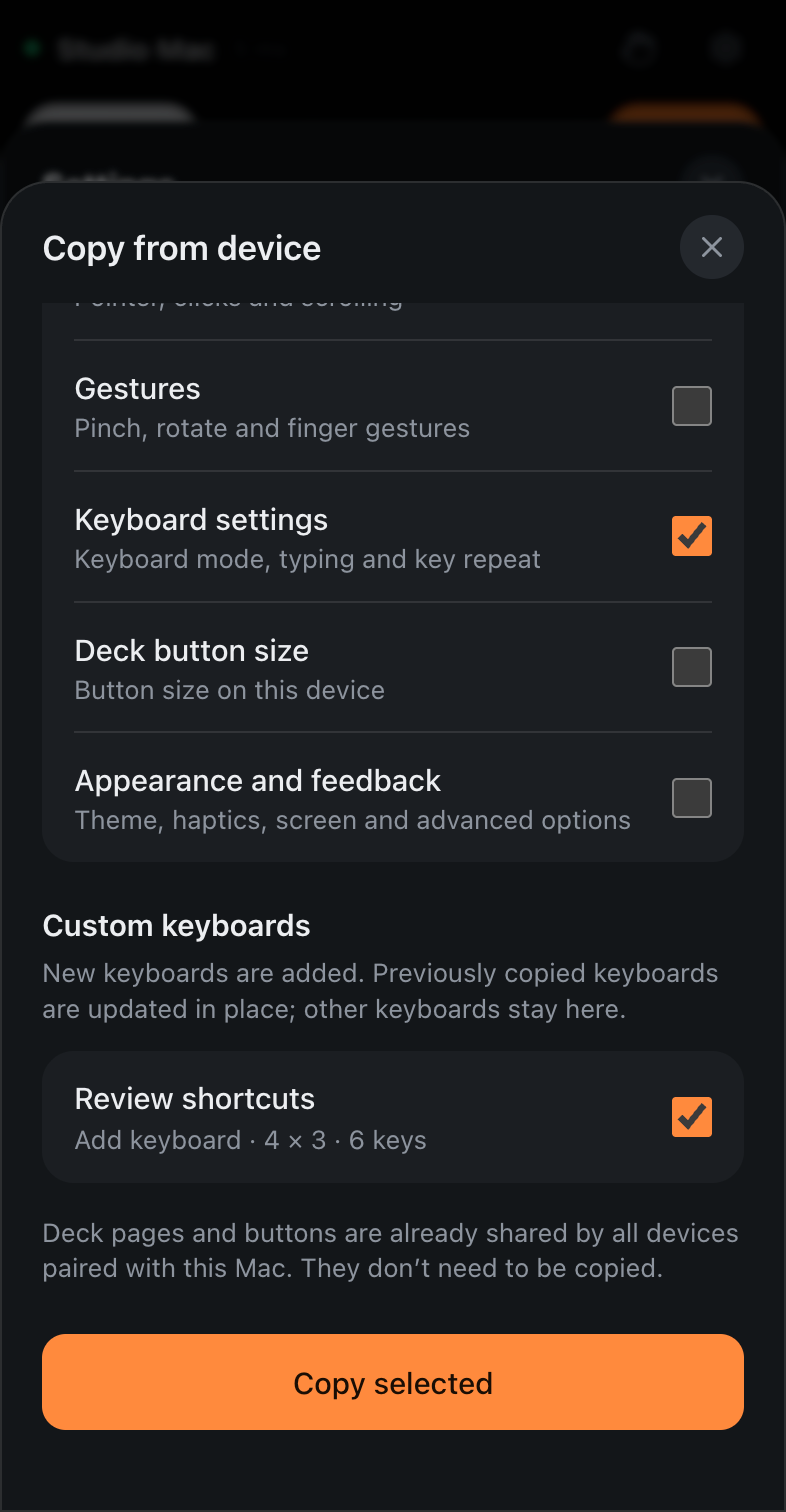
Selected categories replace the corresponding settings on this device. New custom keyboards are added, while previously copied keyboards are updated in place; your other keyboards stay. Unselected settings, the device name and its remember choice stay as they are. Deck pages and buttons are already shared by devices paired with the same Mac.
Export or restore a device backup
On the phone, open Settings → Back up or restore this device. Export device backup saves your preferences and custom keyboards as a JSON file. Keep a copy before replacing a setup you want to reuse.
Choose Choose a backup to restore, select a CmdPalm device backup and review Ready to restore. Only Restore backup applies it; Cancel restore leaves the current setup alone. Invalid, unsupported or oversized files are rejected before anything changes.
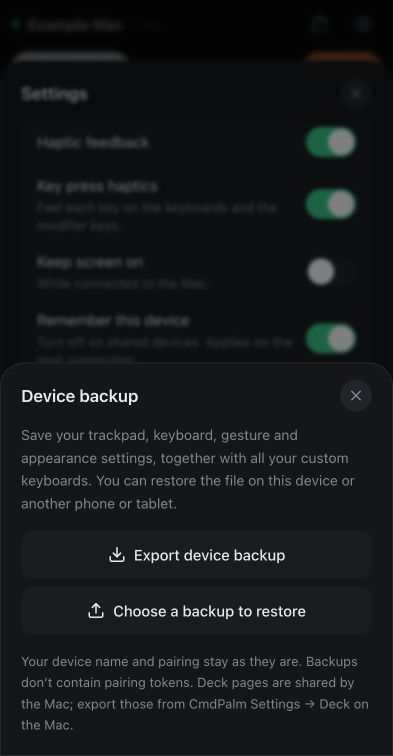
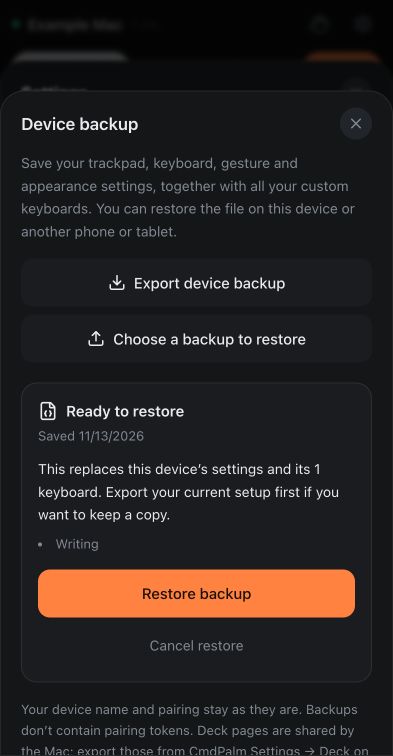
Restoring replaces this device’s preferences and custom keyboards. Its name, pairing and remember choice stay as they are, and pairing tokens never enter the file. The shared Deck has a separate export and import in Mac Settings → Deck.
Use an encrypted connection
The phone’s Settings shows Encrypted or Not encrypted. Ordinary HTTP control is unencrypted; other people on the same network could see what you type. For HTTPS, open CmdPalm Settings → Phone Setup → Encrypted Connection on the Mac, follow the certificate instructions for your phone, then pair through the Encrypted link.
The voice typing guide walks through that setup. It is also needed for the phone browser’s microphone and some other browser features. CmdPalm’s local control does not require an account.
CmdPalm renews its HTTPS certificate while the Mac app runs, including on a Mac left on for months, and retries after a minute if renewal fails. Routine renewal uses the same local authority; the phone’s trusted authority certificate does not need reinstalling each time.
When the Mac is unavailable
When the Mac is asleep, off or on another network, CmdPalm explains that it cannot reach it, lists checks and offers Try again. It reconnects automatically when the Mac returns. A connection lost for a while brings up the same help screen.
With the encrypted connection, the home-screen app saves its interface and offline help after a successful load, so it can open even while the Mac is unreachable. Set it up while the Mac is available first. During an interrupted session, cached tabs and sheets can stay available while it reconnects. A view that could not load offers Try again. Control still needs the live connection.
Pause control or remove access
Use the control switch in CmdPalm’s Mac menu to pause input from all devices. Phones show that control is paused on the Mac. Resume from the same Mac control when you are ready.
Pause releases held keys and buttons, stops media repeats and scroll-strip holds, clears drag lock, and cancels dictation. It stops text still being typed, running Deck sequences and shell commands they started, including their background jobs. Lock Screen, Sleep and Display Sleep actions queued behind typing are cancelled too. An app or automation that already started is not undone; dictation needs a fresh tap on Dictate after resuming.
Stopping or restarting the server, or quitting CmdPalm, also stops running shell commands and their background jobs.
In CmdPalm Settings → Devices, Connected Now lists current connections. Disconnect ends a session but lets that device reconnect. Under Paired Devices, use Remove… to revoke a device’s pairing; it must pair again, and the phone settings saved for it on the Mac are deleted. You can also rename paired devices there.
A rename on the Mac is reflected immediately for an already-connected device.
On the phone, Disconnect keeps the pairing. Forget this Mac removes the phone’s saved pairing, clears its app list and asks you to pair again next time. Reset settings on this device has a separate confirmation to reset that device’s settings.
To start CmdPalm automatically, enable General → Open at login from the copy installed in Applications. If you opened it from the disk image or a temporary location, CmdPalm asks you to move it and open the installed copy first.
For your controls themselves, try the gesture settings, custom keyboards or shared Deck.