Find your pages
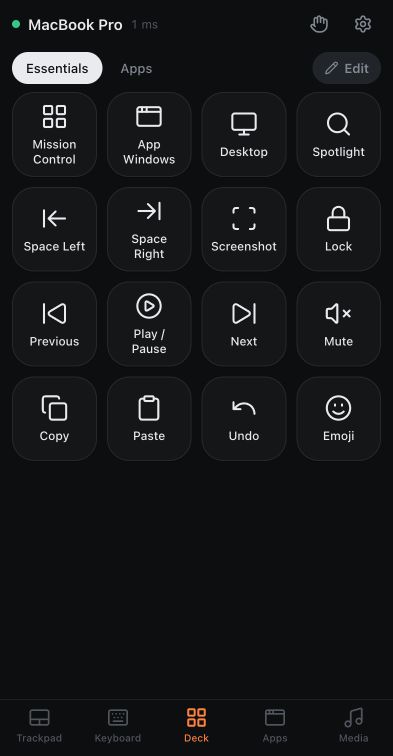
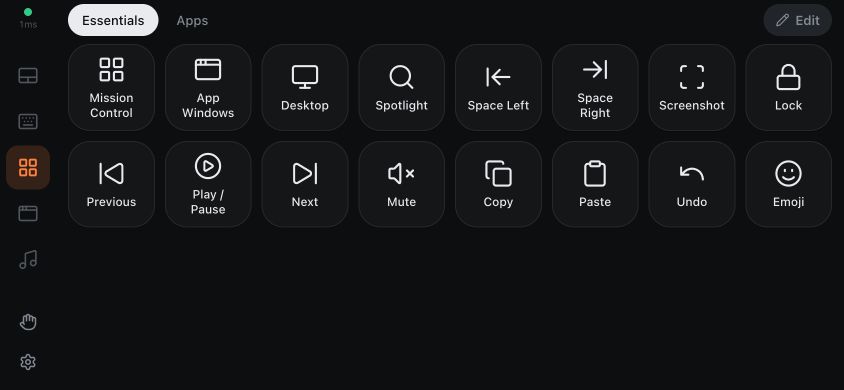
Open Deck. The default Essentials page contains Mac, media and editing actions. The Apps page starts with app-launch buttons.
Tap a page name, or swipe horizontally across the deck, to switch pages. The Apps page inside Deck is editable; the separate Apps main tab is the searchable list of apps on your Mac.
Deck buttons also work with a hardware keyboard and with VoiceOver on iPhone and iPad or TalkBack on Android.
One deck, shared by your devices. Changes to its pages and buttons are stored on the Mac and appear on every paired phone and tablet. Custom keyboards and phone preferences belong to individual devices.
Add or edit a button
- Select a page and tap Edit. Touching and holding a button also enters editing and opens that button’s settings.
- Tap +, labelled Add button.
- Choose an Action, fill in its details and add a short Label.
- Under Look, keep Automatic or choose a Symbol, Emoji and optional Color.
- Tap Add, then Done to use the deck.
In edit mode, tap an existing button to change, duplicate or delete it. Duplicate saves the changes currently in the editor to both the original button and its copy. Drag buttons to reorder them; the new order is saved even if you tap Done or switch tabs before lifting your finger.
The editor keeps your draft until the Mac confirms saving. A failed save, lost connection or conflicting edit leaves it available to review and retry. If another device deletes the button’s original page while you are editing, the editor warns you and lets you add the draft to the current page as a new button.
Undo or redo a saved edit
While editing, use Undo or Redo in the Deck toolbar. They recover accepted changes, including deleted buttons and pages. A change from another device or a reconnect clears this device’s Undo history, so export the Deck if you need a lasting backup.
Choose an action
| Action | What it does |
|---|---|
| Keyboard shortcut | Sends a key and modifiers to the focused Mac app. |
| Mac action | Runs an everyday system or editing action, such as Mission Control, a screenshot or Look Up for the word under the pointer. |
| Media & sound | Sends playback, sound or other available media-key controls. |
| Open app | Chooses an app and a Show / hide, Open, Hide or Quit behavior. |
| Type text | Types a saved snippet, optionally with Press Return afterwards. |
| Open link | Opens a website or an app link on the Mac. |
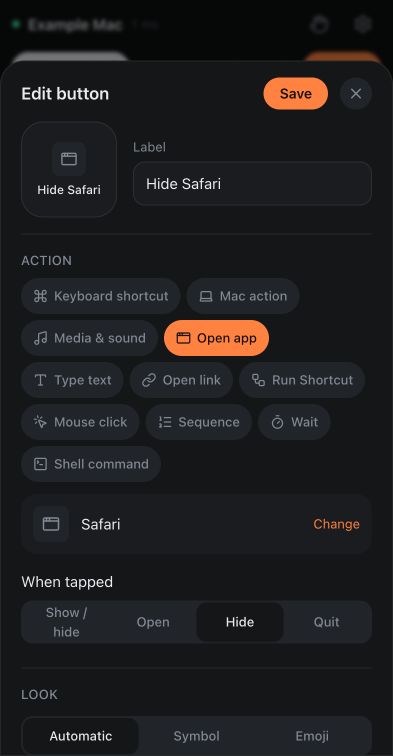
Turn on Settings → Show advanced settings on the phone for Run Shortcut, Mouse click, Sequence and Wait. Run Shortcut needs the exact name of an automation already available in the Mac’s Shortcuts app, including any leading hyphen. Test it there first and handle any Mac permission prompts.
Run several actions
Choose Sequence with advanced settings enabled, then use Add step. Tap a step to edit it, use its arrows to change its position, or remove it.
A sequence runs steps in order. Open app waits for the app to become active before typing, and Run Shortcut waits for the automation to finish successfully. A failed Shortcut stops the sequence; a run taking more than 60 seconds is treated as a failure. Links, apps, Shortcuts and shell commands also wait for preceding keys and text to be sent, so an automation can read what ⌘C copied.
Use Wait when the target app needs extra time to open a document or finish another operation. CmdPalm does not inspect the screen or detect when a particular window or document is ready. Test each step on your Mac.
Shell command appears only when the Mac owner turns on CmdPalm Settings → Deck → Shell Commands → Allow buttons to run shell commands and confirms the prompt, and Show advanced settings is on on the phone. Commands run through zsh as the Mac user, and paired devices can create command buttons. The same setting is required for Open link buttons that open files, terminals or file servers: file:, ssh:, telnet:, x-man-page:, smb:, cifs:, afp:, nfs: and ftp: links. Enable this only if you trust every paired device and understand the commands. Ordinary deck actions do not need it.
Pausing control, turning shell commands off, stopping the server or quitting CmdPalm stops running shell commands and background jobs they started. Pausing also stops running sequences and cancels queued Lock Screen, Sleep and Display Sleep actions that were waiting for typing to finish. An app or Shortcut that already started is not undone by pausing.
A shell command that fails now shows its error, such as “command not found”. CmdPalm waits up to 1.5 seconds for a shell command to finish before continuing to the next step. This does not wait for a window or app to become ready.
Commands entered on iPhone keep straight quotes and plain dashes, so iOS smart punctuation does not change shell syntax. If a command still fails, check the error and test it in Terminal on the Mac.
When a shortcut field is focused, hardware Esc assigns Escape instead of closing the editor. Tab moves to the next control; use the on-screen Tab option to assign the Tab key.
Organize pages
In edit mode, use + beside the page names, labelled Add page. Tap the already-selected page name to open its settings.
Name renames the page. Columns chooses 1–8 columns as the starting layout for an upright phone. A phone turned sideways or a tablet fits more columns, keeping buttons about the same size. Drag page tabs in edit mode to reorder them. You can also use Move left and Move right in the page settings, or Alt + Left / Right on a connected keyboard while a tab is focused. The selected page stays open. Delete page asks you to tap again to confirm, then removes the page and its buttons. It is available when there is more than one page.
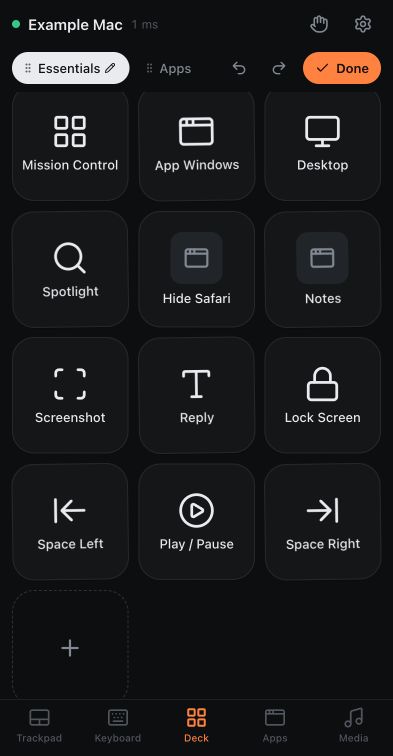
Tap Done in the Page sheet to finish.
Choose a button size for this device
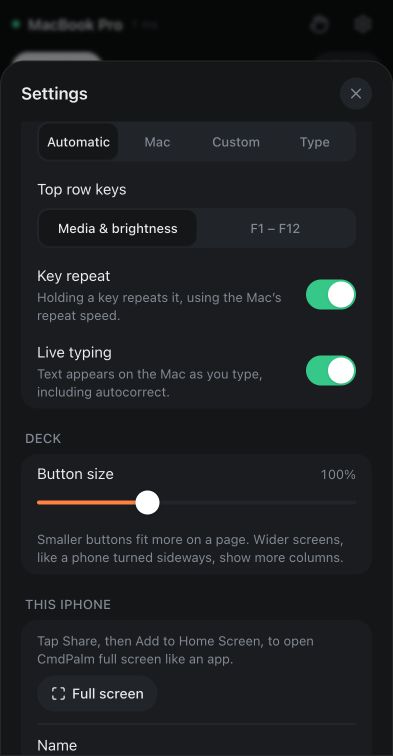
Open the phone’s Settings → Deck → Button size. The default is 100%; choose 70%–160% to fit more buttons or make them easier to tap. This setting belongs to this device. It does not change the shared page’s Columns setting or another phone’s button size.
The deck fits up to 12 columns across a wide screen. Icons and labels scale with the buttons; the smallest buttons show just their icon.
Back up or restore the deck
On the Mac, open CmdPalm Settings → Deck → Backup:
- Export… saves the current deck as a file.
- Import… replaces the shared deck with the selected deck file.
- Reset… replaces every page and button with the defaults.
Export first if you want to keep a setup before importing, resetting or deleting pages. These changes affect every paired device.
If CmdPalm cannot load a saved deck, such as one from a newer version, it sets the file aside rather than overwriting it with later edits. See saving problems before resetting a setup you want to recover.