Find an app
Open Apps on the phone. Open shows running apps; All apps shows the available app list. Use Search apps on the Mac to find one by name, or tap Refresh to reload the list.
Tap an app to open it or bring it to the front. If it is already the active, visible app, tapping hides it.
Touch and hold an app for explicit actions:
| Action | What it does |
|---|---|
| Open / Bring to front | Launches the app or focuses its window. |
| Hide | Hides a running app. |
| Add to deck | Adds a button to the last-used Deck page, or the first page if that page is unavailable. |
| Quit | Asks a running app to quit. The app may show a save prompt on the Mac. |
Once an app finishes quitting, it drops out of Open as the list updates; you do not need to refresh it manually. An app waiting for a save confirmation is still running.
The Apps main tab and Deck → Apps page are separate. The first lists your Mac’s apps; the second contains editable buttons.
Include another app folder
If an app is outside the usual Applications folders, open CmdPalm Settings → General on the Mac and use Add Folder… in the app-folders section.
Choose the folder containing your apps, then refresh the phone’s list. Apps on an external drive are available while that drive is connected.
Control playback
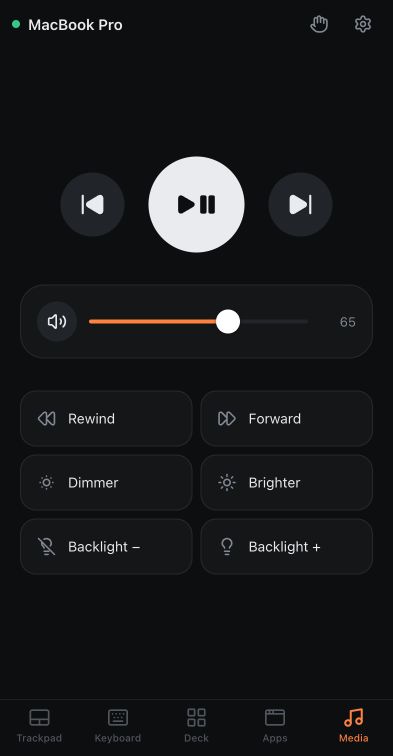
Open Media for Previous track, Play or pause and Next track. Rewind and Forward are available below.
These send Mac media-key commands. They follow the app macOS currently treats as its Now Playing app. Start playback in your intended app on the Mac first; there is no player picker in CmdPalm’s Media screen.
Adjust sound and brightness
CmdPalm always shows a Mute / Unmute button. When macOS exposes software volume control, it also shows a Volume slider; otherwise it shows volume-down (−) and volume-up (+) buttons.
Some HDMI outputs and USB audio devices manage volume themselves. In that case, adjust it on the output device if the Mac’s media keys cannot change it.
If you switch tabs while dragging Volume, the slider follows the Mac’s current volume again when you return.
Dimmer, Brighter, Backlight − and Backlight + send display and keyboard-backlight controls. Their effect depends on your Mac, display and keyboard. External displays may not respond to the Mac’s standard brightness keys.
Reach the controls inside an app
Switch to Trackpad to click a player’s own controls, or Keyboard → Mac for Space, Escape and arrow keys. You still look at the Mac’s screen or connected display while using them.
To keep your favorite app and playback buttons together, add them to a Deck page.