
 CmdPalm 06 / Media
Pair while you are beside the Mac
Install CmdPalm on an Apple silicon Mac running macOS 15 or later, allow Accessibility, then scan its menu-bar QR code with your phone. iPhone and iPad require iOS 17 or later; Android phones can connect through a supported browser. Follow the pairing guide if this is your first connection.
Keep the phone and Mac on a local network where they can reach each other. Leave the Mac awake while using the remote.
Open or hide an app
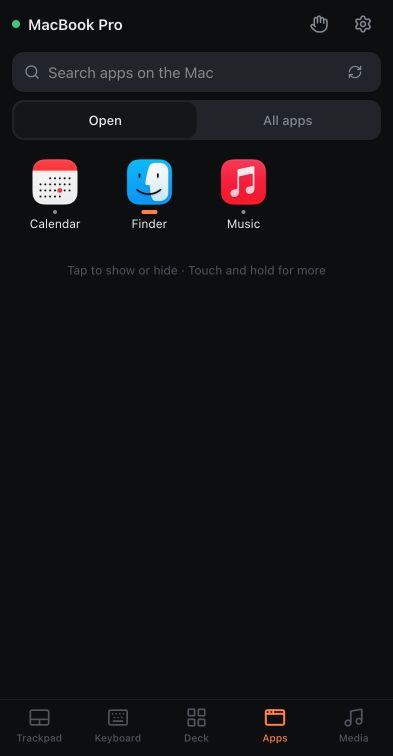
On the phone, choose Apps. The Open filter shows running apps; switch to All apps or use Search apps on the Mac to find another one. Use the refresh button if you need to reload the list.
Tap an app to open it or bring it to the front. If it is already the active, visible app, tapping it hides it. Touch and hold the icon for explicit actions such as Bring to front, Hide, Quit or Add to deck, depending on whether it is running.
Add to deck is useful for an app you open often. It adds a button to the last-used Deck page, or the first page if that page is unavailable.
If an app is kept outside the usual Applications folders, use CmdPalm Settings → General → Add Folder… on the Mac to include its folder, then refresh the phone’s app list. This also works for an available external drive containing apps.
Pause, skip and change volume
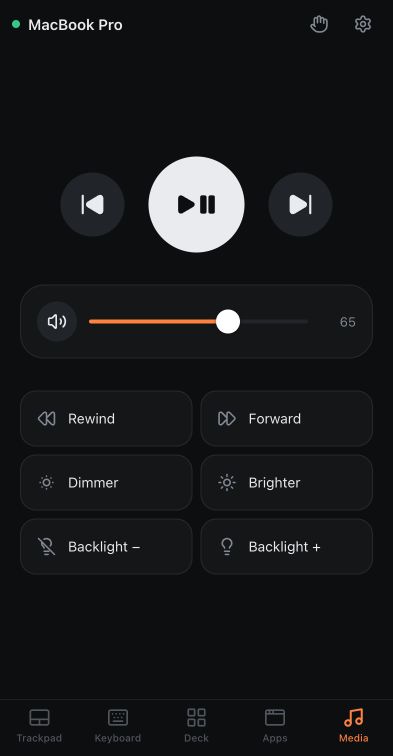
Open Media for the large play/pause button, previous and next track controls, and volume. These send the Mac’s media-key commands, so playback follows whichever app macOS currently treats as the Now Playing app.
Start your music or video on the Mac first, then try play/pause from the phone. If another app responds, check which app owns playback on the Mac. CmdPalm’s Media screen does not have an app picker.
When macOS exposes software volume control, drag the Volume slider or tap its mute button. For outputs without that control, CmdPalm shows volume-down and volume-up buttons instead. Some HDMI outputs and USB audio devices manage volume themselves, so their volume may need to be changed on the output device.
If you switch tabs mid-drag, the slider follows the Mac’s current volume again when you return. Media buttons also work with a hardware keyboard, VoiceOver and TalkBack.
The screen also offers Rewind, Forward, Dimmer, Brighter and keyboard-backlight controls. Their effect depends on the app and your Mac, display or keyboard.
Use the trackpad for the awkward bits
For a video player’s own controls, switch to Trackpad, move the pointer over the Mac’s screen and tap to click. Open its typing panel to enter a search. You can also use Keyboard → Mac for keys such as Escape, arrows or Space when the active app expects them.
You still look at the Mac or its connected display: CmdPalm sends input and does not stream a screen preview to the phone.
Make a small couch deck
Once the basics work, collect a few favourites in Deck: your media app, play/pause, mute, and a shortcut you already use. The shortcut deck guide explains how to add and arrange them.
On iPhone and iPad, Safari’s Share → Add to Home Screen keeps the controls one tap away for next time.