
 CmdPalm 02 / Deck
A free shortcut deck on the phone you own
CmdPalm is a free, open-source Stream Deck-style alternative for Mac: a page of shortcut buttons on your phone or tablet, configured in CmdPalm’s own editor. Use it for app launchers, text snippets, editing shortcuts and sequences of actions.
The buttons run over your local network. Install CmdPalm on the Mac and open the controls in the phone’s browser. A spare phone can stay beside your keyboard as a dedicated shortcut panel.
Start with a paired phone
Install CmdPalm on an Apple silicon Mac running macOS 15 or later, allow Accessibility, then scan the menu-bar QR code with your phone. Both devices need to be on the same local network. The trackpad setup guide walks through installation and pairing. iPhone and iPad require iOS 17 or later; Android phones can use their browser too.
The phone does not need a separate app or account. CmdPalm’s controls are free and its source is available under GNU AGPLv3.
Start with Essentials and Apps
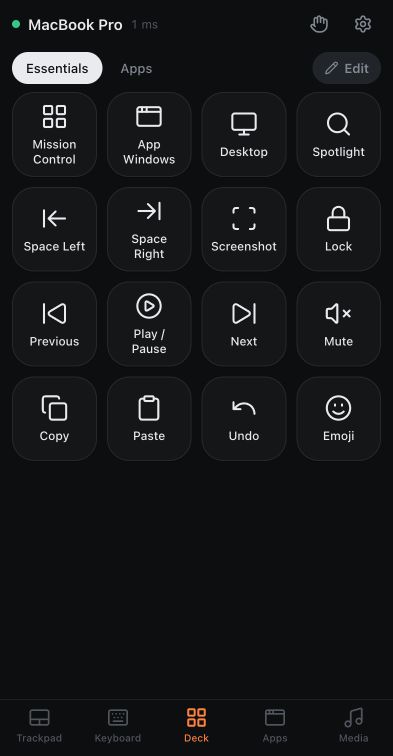
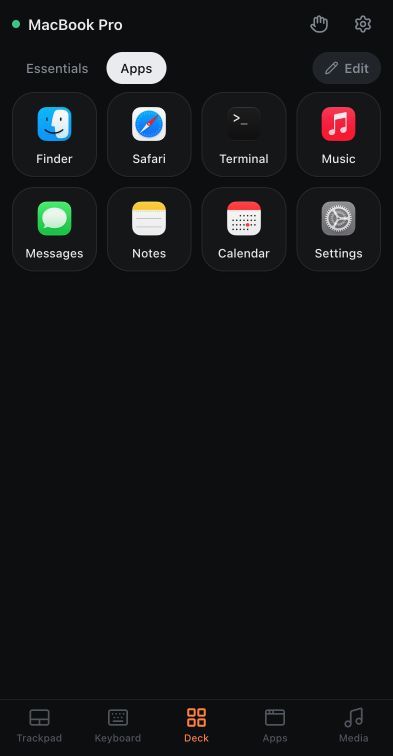
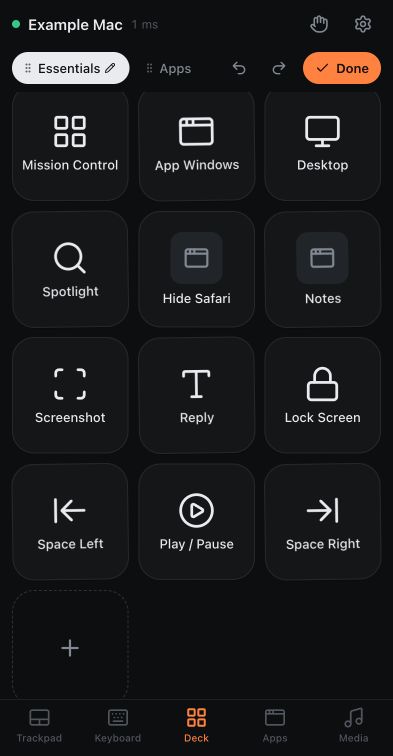
A new deck has two pages, both shown above. Essentials contains Mac actions such as Mission Control, App Windows, Desktop and Spotlight, alongside space navigation, screenshot, lock, media and editing buttons. Apps starts with Finder, Safari, Terminal, Music, Messages, Notes, Calendar and Settings.
Tap a page name or swipe horizontally across the deck to switch pages. The Apps page inside Deck is a set of editable buttons. The separate Apps main tab is your searchable Mac app list, with Open and All apps filters.
Inspect the default screens at full size: Essentials page ↗ and Apps page ↗.
Build your first three buttons
Open Deck, choose a page and tap Edit. You can also touch and hold a button to enter editing. Use the + control labelled Add button, choose an action, give it a short label and tap Add. Tap Done to use the deck.
- Open your main app. Pick an app-launch action and choose an app you already use on the Mac. Label the button with the app’s name.
- Run a familiar shortcut. Add a keyboard shortcut you already use, such as ⌘ + S for Save. Shortcuts go to the active app, so test the button with the intended app in front.
- Insert a reusable snippet. Add a text action for a phrase you type often. Click a text field on the Mac before trying it. Keep passwords and other secrets out of demonstration decks.
Tap an existing button while editing to change it. Under Look, keep the automatic icon, choose a symbol or emoji, and set a colour. You can duplicate or delete an existing button, and drag buttons to reorder them.
Duplicate keeps your current editor changes for both the original button and its copy. Reordering is saved even if you tap Done or switch tabs before lifting your finger. The editor keeps a draft until the Mac confirms saving. A failed save, lost connection or conflicting change leaves it ready to review and retry. If the original page is deleted on another device, the editor lets you add the draft to the current page as a new button.
Undo or redo a saved change
In edit mode, use Undo and Redo in the Deck toolbar to recover accepted edits, including deleted buttons and pages. A remote edit or reconnect clears this device’s history. Export the Deck if you need a lasting backup.
Make a page for each job
In edit mode, tap the + beside the page names, labelled Add page, to create another page. Tap the already-selected page name to edit its name and number of Columns. Drag page tabs while editing to change their order. You can also use Move left and Move right in the page settings, or focus a tab on a connected keyboard and press Alt + Left / Right. The selected page stays open. Tap Done in the Page sheet to save.
A writing page could hold your editor, Save and a text snippet; a couch page could hold your media app and playback controls. Columns sets the starting layout for an upright phone. Landscape phones and tablets fit more columns while keeping buttons about the same size. Deleting a page also deletes its buttons, so keep a backup before removing a setup you want to reuse.
Fit the buttons to your screen
Open the phone’s Settings → Deck → Button size. Start at 100%, move towards 70% to fit more buttons, or towards 160% for larger controls. This changes only this device’s view; the shared pages and another phone’s button size stay the same.
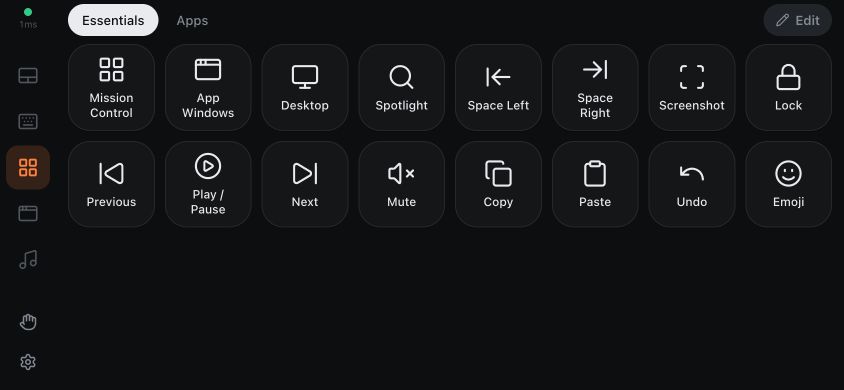
The deck fits up to 12 columns. Icons and labels scale with the buttons, and the smallest buttons show only their icon. Use a size you can comfortably tap.
Choose what a button does
The action editor includes the following choices. To reveal the advanced ones, turn on Settings → Show advanced settings on the phone.
| Action | Use it for |
|---|---|
| Keyboard shortcut | A key and modifiers sent to the focused Mac app. |
| Mac action | System and everyday actions such as Mission Control, app switching, screenshots, editing or Look Up for the word under the pointer. |
| Media & sound | Playback, sound and other available media-key controls. |
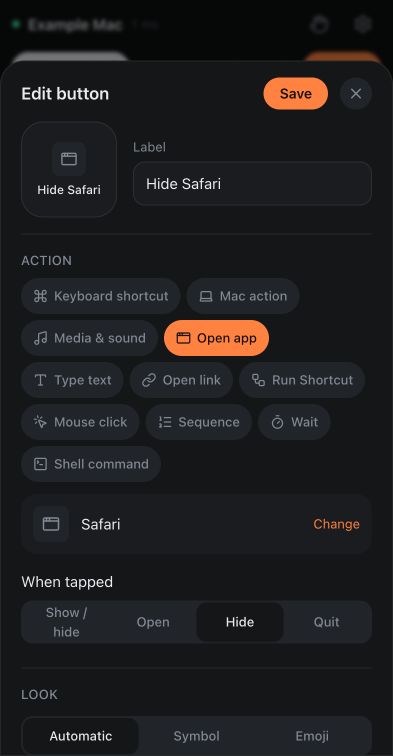
| Open app | A chosen Mac app, with Show / hide, Open, Hide or Quit behaviour. |
| Type text | A reusable snippet, optionally with Press Return afterwards. |
| Open link | A website or app link, such as an obsidian:// link, opened on the Mac. |
| Run Shortcut | An existing automation in the Mac’s Shortcuts app. Advanced. |
| Mouse click | A mouse button with single, double or triple click. Advanced. |
| Sequence | Several actions run in order. Advanced. |
| Wait | A short delay between actions. Advanced. |
Run a Mac Shortcut
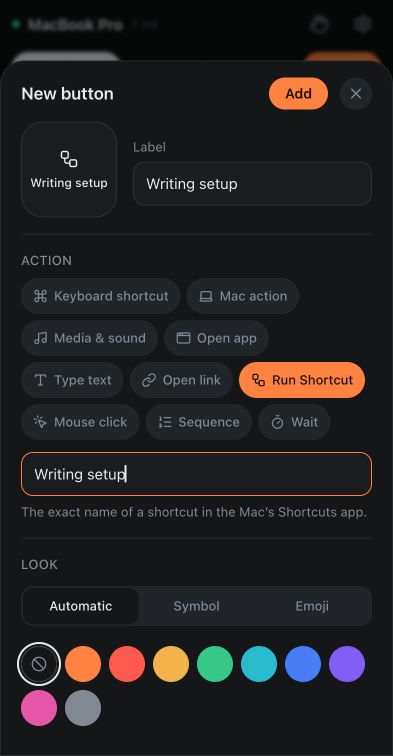
- Create or test your automation in the Shortcuts app on the Mac first.
- Enable advanced settings on the phone, add a Deck button and choose Run Shortcut.
- Enter the exact shortcut name, including any leading hyphen, give the button a label, and add it.
- Leave edit mode and try the button. Handle any permissions your automation requests on the Mac.
CmdPalm waits for the Shortcut to finish successfully before running a following sequence step. A missing or failed Shortcut stops the sequence; a run longer than 60 seconds times out.
Build a multi-step button
With advanced settings on, add a button and choose Sequence. Use Add step to build its actions. Tap a step to edit it; use its up and down arrows to change the order, or its remove control to take it out.
For a simple writing setup, choose Open app → Notes → Open, add a Wait, then a Keyboard shortcut that Notes accepts, such as ⌘ + N for a new note. Test each action first and adjust the wait for the app’s response. Opening an app waits for it to become active, and Run Shortcut waits for successful completion. A Wait can still help with an app’s own document loading or other asynchronous work. Sequences do not inspect the screen or wait for a particular document or window to appear.
Shell command is another advanced choice, available only when the Mac owner enables Settings → Deck → Shell Commands → Allow buttons to run shell commands and confirms the prompt. It runs as the Mac user and lets paired devices create command buttons. The same switch is required for links that open files, terminals or file servers, such as file:, ssh: and smb:. Leave it off unless you trust those devices and understand the commands you add.
Pausing control, turning shell commands off, stopping the server or quitting CmdPalm stops running commands and their background jobs. Pause also stops sequences and cancels Lock Screen, Sleep and Display Sleep actions queued behind typing. It does not undo an app or automation that already started.
A shell command that fails shows its error, such as “command not found”. CmdPalm waits up to 1.5 seconds for the command to finish before the next step runs; this does not detect when an app or window is ready. On iPhone, the editor preserves plain quotes and dashes so smart punctuation does not break your command.
In a shortcut field, hardware Esc chooses Escape instead of closing the editor. Tab moves to the next control; choose the on-screen Tab option to assign Tab. Deck buttons also work with a hardware keyboard, VoiceOver and TalkBack.
Use a custom keyboard for held keys
Deck buttons are useful for actions. If you want a layout of keys that stay pressed while you touch them, open Keyboard → Custom instead. There are presets for jobs such as presentations, and you can create your own layout.
That is useful for a few large arrow keys, a compact navigation pad, or controls you want to hold together. The custom keyboard guide walks through making one, and the presentation guide uses a ready-made preset.
Keep your setup
The deck is stored on the Mac and shared by your paired devices. Device settings and custom keyboards are also backed up on the Mac. You can keep a phone next to the keyboard and pair another device when you need it.
On the Mac, open CmdPalm Settings → Deck → Backup and use Export… to save a deck file. Import… replaces the shared deck on every device, and Reset… restores the default pages and buttons. Export first if you want to keep your current arrangement.
If CmdPalm cannot load a saved deck, including one from a newer version, it sets the file aside rather than overwriting it with later changes. Check the saving troubleshooting advice before resetting a setup you need to recover.
To copy gestures, appearance or custom keyboards between phones, follow the device settings guide; those settings are separate from the shared Deck.
On iPhone, use Safari’s Share → Add to Home Screen for quicker access. On Android, Chrome can add a browser shortcut; installing the full web app requires the Encrypted Connection setup in CmdPalm’s Settings → Phone Setup.
Explore the current feature list when you are ready to expand the panel.