Before you start
CmdPalm’s voice typing streams microphone audio from the phone to the Mac and recognizes speech on the Mac itself. It needs:
- The encrypted HTTPS connection.
- Accessibility and Speech Recognition permissions on the Mac.
- CmdPalm Settings → General → Allow dictation from devices enabled.
- Your phone’s language, which CmdPalm uses for recognition, supported by on-device speech recognition on your Mac.
- Microphone access allowed in the phone’s browser.
If on-device recognition is unavailable, CmdPalm does not fall back to a cloud transcription service.
Enable it on the Mac
Open CmdPalm Settings → General. Under Permissions, allow Speech Recognition, and enable Allow dictation from devices under Dictation.
If CmdPalm reports that your language is unavailable, enable Dictation in macOS System Settings → Keyboard so macOS can download language support. CmdPalm recognizes speech in your phone browser’s language; to use another language, change the phone’s language. Availability depends on macOS and the downloaded support.
Speak into a text field
- On the Mac, click an ordinary text field, such as a new note.
- On the phone, open Keyboard → Type or Trackpad’s typing panel.
- Tap the microphone button labelled Dictate.
- Allow browser microphone access when asked, then speak.
- Tap the red stop button when finished.
Keep the intended field focused on the Mac throughout. Leaving the typing view, locking the phone or losing the connection also stops CmdPalm’s microphone session.
If a call, Siri or another app takes the microphone, dictation stops and shows The microphone stopped. Finish the interruption, return to CmdPalm and tap Dictate to start a new session.
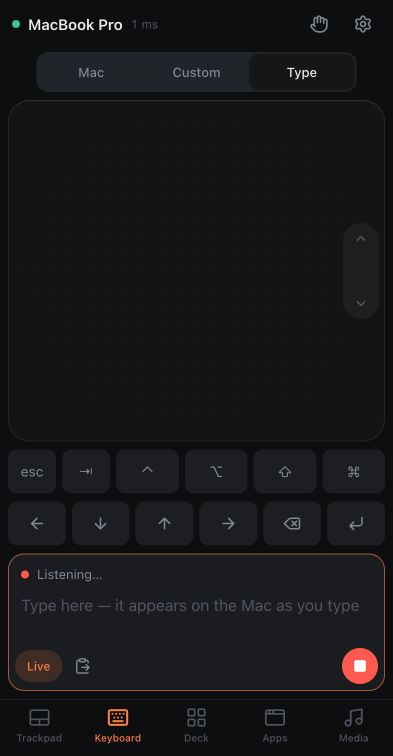
Stop or cancel dictation
On a normal stop, CmdPalm sends the last buffered audio before asking the Mac to finish recognition. Give it a moment to return the final phrase. Pausing control or turning dictation off cancels recognition and releases the microphone instead; resuming control does not restart recording. Tap Dictate when you are ready to begin again.
Choose Live or review first
With Live on, recognized phrases go straight to the focused Mac field.
To review first, turn Live off while the phone’s typing field is empty, then start dictation. The words stay on the phone until you tap the send button. Turning Live back on sends the draft if it fits the text limit.
If Dictate is missing
Open CmdPalm’s Settings on the phone and confirm Encrypted. Then check the Mac’s dictation switch, Speech Recognition permission and the browser’s microphone permission.
The button appears only when the Mac offers voice typing and the browser can capture the microphone over a secure connection. See voice troubleshooting for the full checklist.
Use the phone keyboard’s dictation
You can also tap the microphone on your phone’s own keyboard while its CmdPalm text field is focused. That uses the phone keyboard’s dictation provider and privacy settings. CmdPalm’s own Dictate button uses the Mac’s local recognition.