
 CmdPalm 04 / Voice typing
Start with a paired phone
You need an Apple silicon Mac running macOS 15 or later and a phone on the same local network. iPhone and iPad require iOS 17 or later. Follow the installation and pairing guide first, including CmdPalm’s Accessibility permission.
Voice typing uses the phone’s microphone. You do not need to sit beside the Mac’s microphone or connect a headset to the Mac.
1. Set up the encrypted connection
The phone’s browser needs a secure connection before it can offer its microphone to CmdPalm. On the Mac, open CmdPalm Settings → Phone Setup → Encrypted Connection.
- Choose iPhone and iPad or Android to see the instructions for your phone.
- Scan the Certificate code and follow those instructions to install and trust the certificate created by your Mac.
- Then scan the separate Encrypted link code to open and pair with the HTTPS address.
Use the certificate and address shown by your own CmdPalm app. The Mac displays the certificate’s SHA-256 fingerprint alongside the encrypted address. Android settings names can vary by phone, so use the steps shown in CmdPalm as your starting point.
2. Enable speech recognition on the Mac
In CmdPalm’s General settings, enable Allow dictation from devices. Under Permissions, allow Speech Recognition if it has not already been granted.
CmdPalm requires on-device speech recognition for your language. If it reports that the language is unavailable, turn on Dictation in macOS System Settings → Keyboard so macOS can download the language support, or try another supported language. CmdPalm does not switch to cloud transcription when on-device recognition is unavailable.
3. Speak into the typing panel
- On the Mac, click an ordinary text field, such as a new note, so it has the typing cursor.
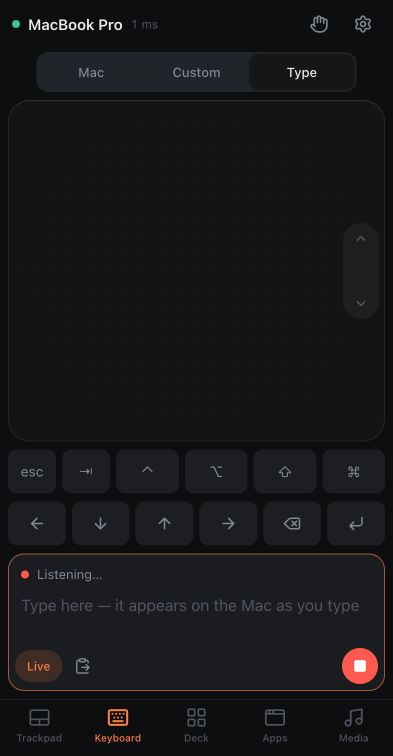
- On the phone, open Trackpad and tap its keyboard button, or choose Keyboard → Type.
- Tap the microphone button labelled Dictate. Allow microphone access in the phone’s browser when asked.
- Say a short sentence. With Live enabled, recognised phrases are typed on the Mac as they arrive.
- Tap the red stop button when you have finished.
For a chance to review the words first, turn Live off before starting with an empty typing panel. The recognised text stays in the phone’s field until you tap the send button. Turning Live on sends the draft if it fits the text limit.
Keep the intended Mac field focused while speaking or sending. Secure fields and some custom editors may handle input differently, so try a short sentence in the app you intend to use.
When you tap Stop, CmdPalm sends the final buffered audio before asking the Mac to finish recognition. Allow a moment for the last phrase. Pausing control or turning dictation off cancels recognition and releases the microphone; resuming control does not restart it. Tap Dictate when ready to begin again.
Resume after a microphone interruption
If a call, Siri or another app takes the microphone, CmdPalm stops dictation and shows The microphone stopped. Finish the interruption, return to the typing panel and tap Dictate to start again. Leaving the typing view, locking the phone or losing the connection also stops its microphone session.
If the microphone button is missing
Check that you opened the Encrypted link, enabled dictation in CmdPalm on the Mac, and allowed the browser’s microphone permission. The microphone control appears only when the connection and browser support it.
You can also dictate using the microphone on your phone’s own keyboard while CmdPalm’s typing field is focused. That uses the phone keyboard’s dictation service and its settings. For CmdPalm’s current setup instructions, see the voice typing section of the README.