Choose a keyboard mode
Open Keyboard and choose a mode at the top:
| Mode | Use it for |
|---|---|
| Mac | Individual Mac keys, function keys, shortcuts and held key combinations. |
| Custom | Your own grid of larger keys, with an optional trackpad. |
| Type | Text entered using your phone’s normal keyboard. |
In Settings → Keyboard & typing → Keyboard, Automatic starts with Mac keys on tablets or wider screens, and Type on smaller phones. You can select a mode yourself at any time.
Use Mac keys and modifiers
The Mac keyboard follows the Mac’s current input layout. Switch the Mac’s input source, for example from U.S. to German, and the phone’s keys update right away, even while another app is in front. Rotate your phone for a wider keyboard. Where there is enough room, a trackpad appears above the keys.
Hold a key to keep it pressed. You can touch several keys together. Modifier keys such as ⌘, ⌥, ⌃ and ⇧ can also be latched: tap for the next key, or double-tap to lock. Tap a locked modifier to release it.
The Mac keyboard’s right ⌘, ⌥ and ⇧ keys send the right-side keys to the Mac. Each side lights up separately when tapped, locked or held. Use the matching side for tools that distinguish them, such as a hyper key assigned to right Command. Custom keyboards can also include right-side Control.
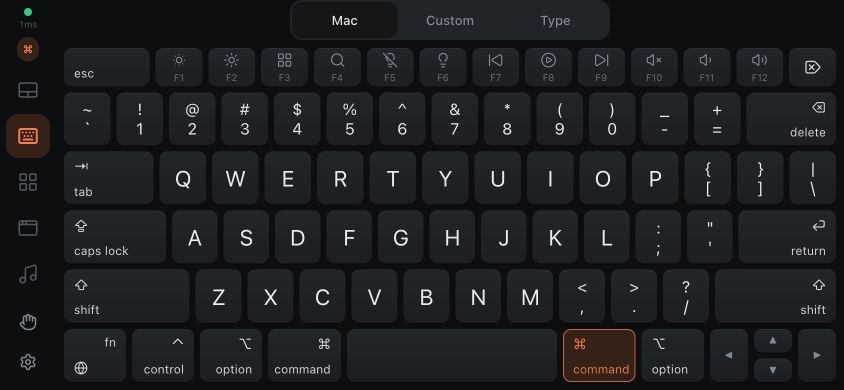
Under Keyboard & typing, Top row keys switches between Media & brightness and F1–F12. Key repeat follows the Mac’s repeat speed when a key is held.
See when Caps Lock is on
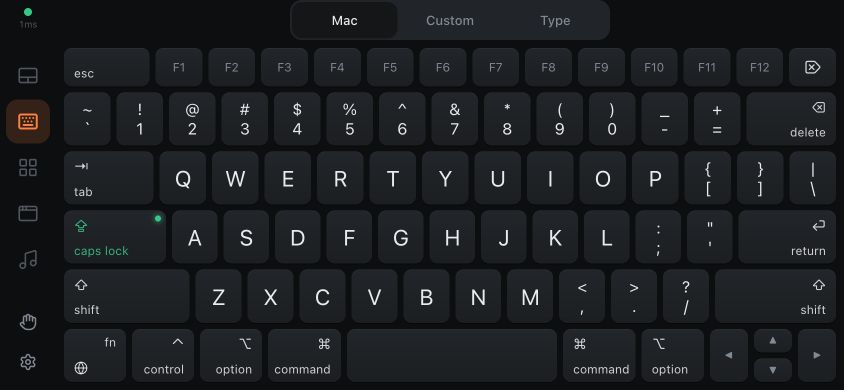
The Caps Lock key turns green and shows a light while Caps Lock is on. It follows the Mac’s state, whether you switch it on from the phone or the Mac’s own keyboard. Tap Caps Lock again to turn it off. A custom key that sends Caps Lock shows the same light.
Fill the screen with Sideways keyboard
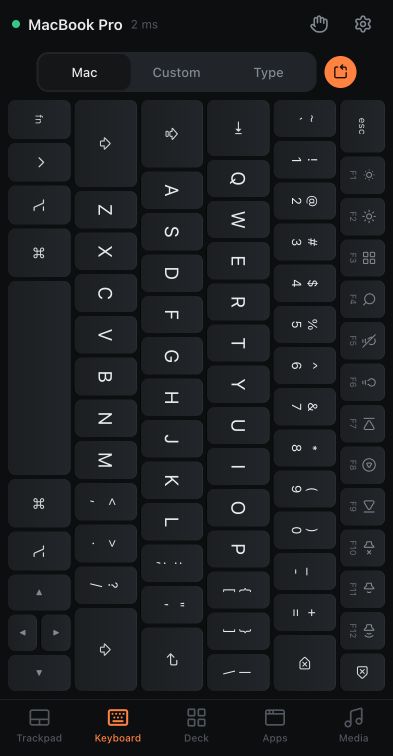
Turn on Settings → Keyboard & typing → Sideways keyboard, or tap the rotation button next to Mac on the Keyboard tab. On a phone whose browser is upright, the full Mac keyboard fills the screen on its side without the trackpad. Physically turn the phone to type with larger keys, even when rotation is locked.
Turn the phone → To the left / To the right chooses the direction. Sideways keyboard is off by default; turn it off to return to the usual layout.
Type with the phone keyboard
Choose Keyboard → Type, or open the typing panel from Trackpad. Tap the text field to bring up your phone’s keyboard.
- Live on: text and corrections are sent to the focused Mac field as you type.
- Live off: compose in the phone’s field, then tap the send button to send the text.
- Eraser: clears the phone’s field while keeping text already sent to the Mac.
The Live button and Settings → Keyboard & typing → Live typing are the same setting, and it is on by default. Turn Live off to compose first. Switching it off preserves text that has not reached the Mac; switching it on sends the draft if it fits the 64 KiB UTF-8 limit. An oversized draft stays in the phone’s field so you can shorten it or send smaller parts.
With Live on, using the typing panel’s arrow, Delete, Return or phone-clipboard buttons starts a fresh local typing segment. Subsequent typing and corrections apply to that new segment.
Keep the intended field focused on the Mac. Moving the cursor or changing apps during Live typing can make later corrections affect a different place. Start with a short test in a new note.
Use a hardware keyboard or screen reader
When a click button, modifier key or Mac key above the phone’s typing field has focus, Return or Space activates it. These controls also support VoiceOver and TalkBack activation. Return and Space activate the phone’s control without also typing those keys on the Mac.
When choosing a shortcut in an editor, Esc on a hardware keyboard selects Escape instead of closing the editor. Tab moves to the next control; choose the on-screen Tab key option to assign Tab itself.
Choose how text is sent
Enable Settings → Show advanced settings, then find Keyboard & typing → Send text as.
| Method | When to use it |
|---|---|
| Characters | The default for ordinary text fields and Unicode text. |
| Key presses | Apps that expect physical keys, including some games, virtual machines and remote desktops. |
| Paste | Longer text sent using the Mac’s paste operation. |
These methods apply to text you send with the send button while Live is off. Live typing always sends characters, and the Mac keyboard’s individual keys still send key events. To use Key presses or Paste, turn Live off first. The target app must accept the chosen method. macOS Secure Input can block typed text in protected fields.
Text sent as Key presses keeps the case you wrote even while Caps Lock is on. Individual Mac keys still behave like physical keys and follow Caps Lock.
Paste from your phone
On HTTPS, supported browsers show Paste the phone clipboard on the Mac. It reads text from your phone’s clipboard and pastes it into the focused Mac field. Allow the browser’s clipboard permission if asked.
When pasting text, CmdPalm temporarily uses the Mac clipboard and then restores its earlier contents. Browser clipboard availability and permission prompts vary.
For speaking instead of typing, set up voice typing. For a few large controls that stay pressed while touched, use custom keyboards.