
 CmdPalm 08 / Gestures
Start with the feel of the pointer
Once your phone is paired, tap CmdPalm’s Settings gear. Under Trackpad, adjust Pointer speed, then try moving across the Mac’s screen. Change one setting at a time so you can tell what helped.
CmdPalm smooths uneven touch timing and brief Wi-Fi delays automatically, including at high pointer speeds. In advanced settings, Acceleration controls how much faster finger movements increase pointer travel, with a gradual response as you speed up and slow down.
Games and apps that read raw mouse movement keep receiving it even when the visible pointer reaches the screen edge.
Tap to click, Two-finger tap to right-click and Show click buttons let you choose the controls you prefer. The click buttons can also be held while another finger moves on the trackpad to drag.
Choose a dragging style
Enable Show advanced settings to reveal the other trackpad options:
- Acceleration changes how the pointer responds to faster finger movement.
- Touch and hold can start a drag, right-click, or do nothing.
- Tap, then drag lets you tap and quickly touch again to begin dragging.
- Drag lock keeps a drag going after you lift your finger, until you tap again.
- Three-finger drag moves windows and selects text with three fingers. It starts off; turning it on disables three-finger swipes while four-finger gestures keep working.
- Show touches makes your touches visible on the trackpad.
Try dragging a window before using a new setup for something precise. The hand button, Release all keys and buttons, releases input if you need to start again.
Tune scrolling and zoom
Under Scrolling & zoom, set Scroll speed. Natural scrolling makes content move with your fingers, while Momentum lets a flick continue scrolling after you lift them.
Disconnecting or tapping Release all keys and buttons stops this phone’s momentum. When two devices scroll or zoom, ending one gesture does not end the other device’s gesture.
Pinch to zoom zooms smoothly like a Mac trackpad in supported apps, including Safari, Photos, Preview and Maps. To keep using zoom shortcuts, enable advanced settings and choose Pinching → Presses ⌘+ and ⌘−. Choose Zooms smoothly to return to the default.
Rotate is on by default: turn two fingers to rotate photos, maps and PDFs in supported apps. Smart zoom starts off. Turn it on to double-tap with two fingers to zoom into a page or PDF, then double-tap again to zoom back out. Right-clicks wait a little longer to check for the second tap.
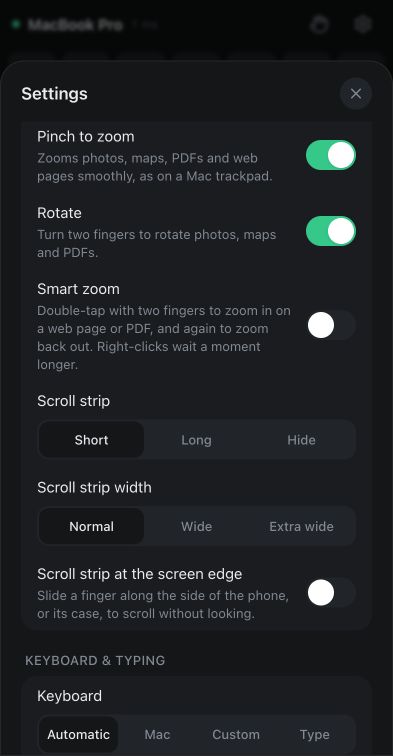
The Scroll strip can be Short, Long or hidden. Choose Normal, Wide or Extra wide under Scroll strip width. Enable Scroll strip at the screen edge to scroll by sliding along the side of the phone or its case. With advanced settings on, choose the strip’s Right or Left side. The short strip also offers Hold to keep scrolling: move its handle to the top or bottom and hold it there.
Assign three- and four-finger gestures
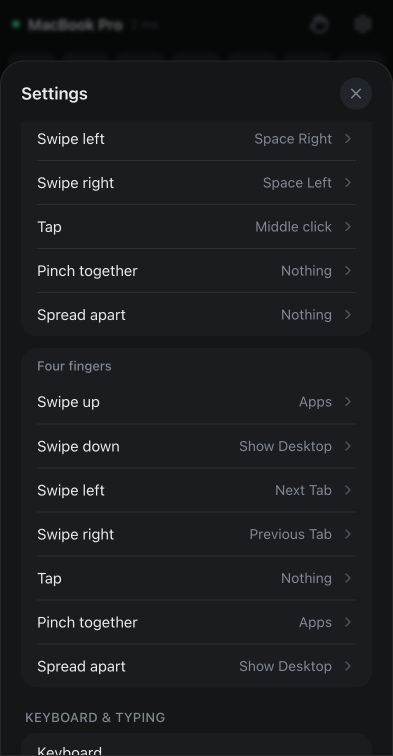
With advanced settings enabled, scroll to Gestures. Three fingers and Four fingers each have rows for Swipe up, Swipe down, Swipe left, Swipe right, Tap, Pinch together and Spread apart.
- Tap the gesture you want to change.
- Keep Enabled on, then choose an action and its settings. You can use a Mac action, shortcut, app or another available action type.
- Tap Save, return to Trackpad and try it.
To clear a gesture, open its row, turn Enabled off and save. Start with one or two actions you use often.
Know the starting gestures
By default, three-finger up opens Mission Control, down opens App Windows, left reveals the space to the right, right reveals the space to the left, and a tap sends a middle click. Four-finger up opens the app launcher (Apps or Launchpad, depending on macOS), down shows the desktop, and left or right switches to the next or previous tab. Pinch your thumb and three fingers together to show your apps, or spread them to show the desktop. Four-finger tap and three-finger pinch and spread start unassigned.
Those tab and app actions follow macOS and the focused app. Your gesture settings are kept for this device and backed up on the Mac; the device settings guide explains how to copy them to another phone or tablet.