
 CmdPalm 01 / Display
A live view, with controls within reach
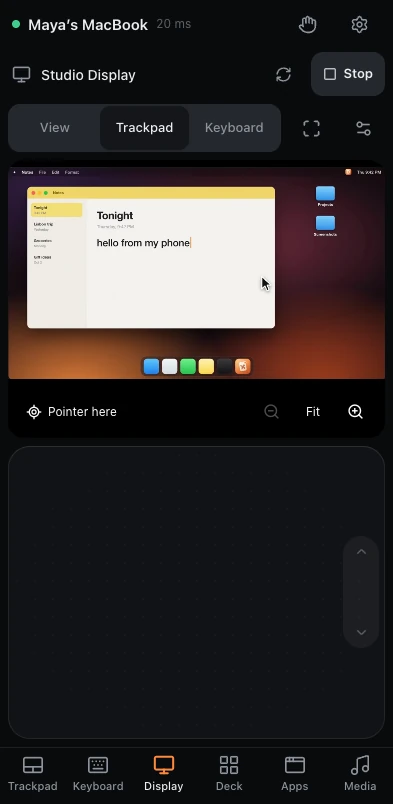
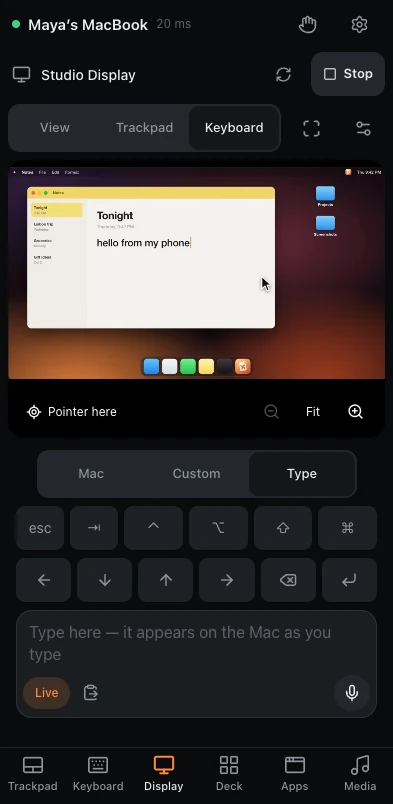
Open Display to view a selected Mac screen. Choose Trackpad to point and click while you watch, Keyboard to type into the focused Mac app, or View when you just want the picture. On a wide screen, the preview and controls can sit side by side.
Check a document from the couch, keep an eye on a task, or answer a message without going back to the desk. This mirrors an existing Mac display; it does not add an extended desktop. Audio stays on the Mac.
Allow the right phone to view
- Install or update to CmdPalm 1.0.0 or later and pair your phone.
- On the Mac, enable CmdPalm Settings → General → Allow screen mirroring.
- Grant CmdPalm Screen Recording permission in macOS Privacy & Security.
- In CmdPalm Settings → Devices, allow screen access for this phone.
- Open Display on the phone, choose a monitor and tap View.
A phone can request access, but only you can approve it on the Mac. Existing paired devices do not automatically receive screen access.
Read a little closer
Pinch to zoom into the preview and drag to pan. Use Fit to return to the whole display. Pointer here brings the Mac pointer onto the selected display. Fullscreen gives the picture the whole app viewport, hiding the input controls until you exit.
In Display options, choose Automatic for motion, Save battery for lower bandwidth, or Sharper text for reading. HD text · lossless preserves fine detail up to 4K and updates changed areas up to four times per second. Use it for small text or code. A larger display, such as a 5K monitor, is scaled to fit the HD pixel limit.
Private, and easy to stop
Screen viewing is off by default. One allowed device can view one selected display at a time. Leaving Display, backgrounding the phone, disconnecting, or pausing, locking or sleeping the Mac ends viewing. You can revoke screen access separately from control access. The Mac’s display stays awake while you view it, while locking or sleeping the Mac still stops viewing immediately.
Display media is encrypted over WebRTC. Use HTTPS to protect the browser page, pairing and controls as well. CmdPalm does not save a screen recording or send your display through a hosted service.
At home, or over your private network
A local network is the simplest way to connect. For access outside home, connect both devices through a private VPN such as Tailscale and use the Mac’s VPN address. The screen stream also needs a working UDP path, so a reachable control page alone does not guarantee video. Follow the Tailscale and remote-access guide.
The Display documentation covers quality settings, access requests and troubleshooting in more detail.